
More insight, less searching: all important WordPress information directly on your dashboard
Admin Dashboard Stats + Info brings together the information you regularly need as a WordPress administrator in one central place. Instead of constantly opening different admin pages, settings and technical screens, you can immediately see what is happening on your website directly from your WordPress dashboard.
See how much content is being published, which content is still saved as a draft, what is scheduled, how active comments and visitors are, which image sizes WordPress uses and how important parts of your server and WordPress installation are doing. You also decide for yourself which information you want to see.
The free Lite version includes all of the important dashboard sections and is an excellent way to gain more insight into WordPress. However, if you want full control over how your dashboard is configured, more detailed activity information, support for custom post types, additional visual options and advanced administration features, Admin Dashboard Stats + Info Pro lets you get the most out of the plugin.
Table of Contents
- Why I created Admin Dashboard Stats + Info
- The key benefits in one place
- Full control over what appears on your dashboard
- How does Admin Dashboard Stats + Info work?
- Lite or Pro: which version is right for you?
- Why choose Pro?
- Pricing
- Frequently Asked Questions
- Turn your WordPress dashboard into a place that is genuinely useful
Why I created Admin Dashboard Stats + Info
If you regularly work with WordPress, you will probably recognize this situation: the information you need is usually available somewhere, but it is spread across many different screens. To check posts, you go to the posts overview. For comments, you open another section. For scheduled publications, you have to search again, and for technical information about WordPress or your server, you end up somewhere else entirely. If you want a proper overall picture, you are constantly switching between different screens.
There are, of course, plugins that display statistics, server information or editorial data. The problem is that many of them focus on only one area or add so much additional functionality that WordPress administration becomes unnecessarily heavy and complicated. I wanted something different: a practical plugin that brings together exactly the information I personally want to see immediately after logging in.
That is why I created Admin Dashboard Stats + Info. The idea is simple: more useful information in the place where you already start, without turning your WordPress dashboard into a complicated analytics system.
The plugin integrates with the familiar WordPress administration environment and lets you decide which sections are relevant to you. Widgets you do not use can be disabled. The plugin only calculates data for enabled sections and uses caching for more demanding calculations. This gives you a detailed overview without repeatedly recalculating the same information unnecessarily.
The key benefits in one place
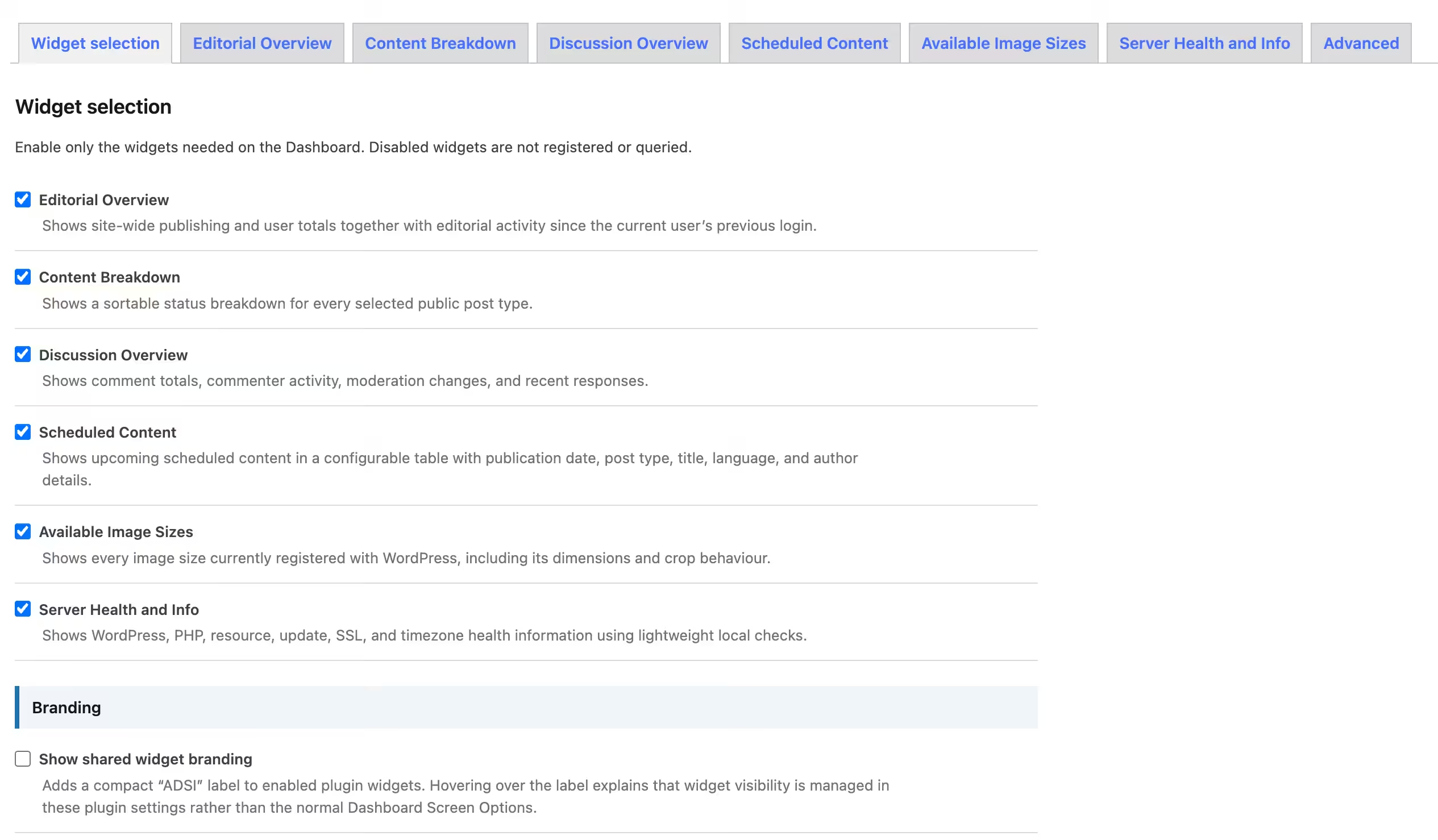
Admin Dashboard Stats + Info is built around six dashboard widgets. Each widget has a clear purpose and can be enabled or disabled individually. This allows you to create a compact dashboard containing only the information that matters to you, or combine multiple widgets for a much broader overview of your website.
Editorial Overview: immediately see what is being published on your website
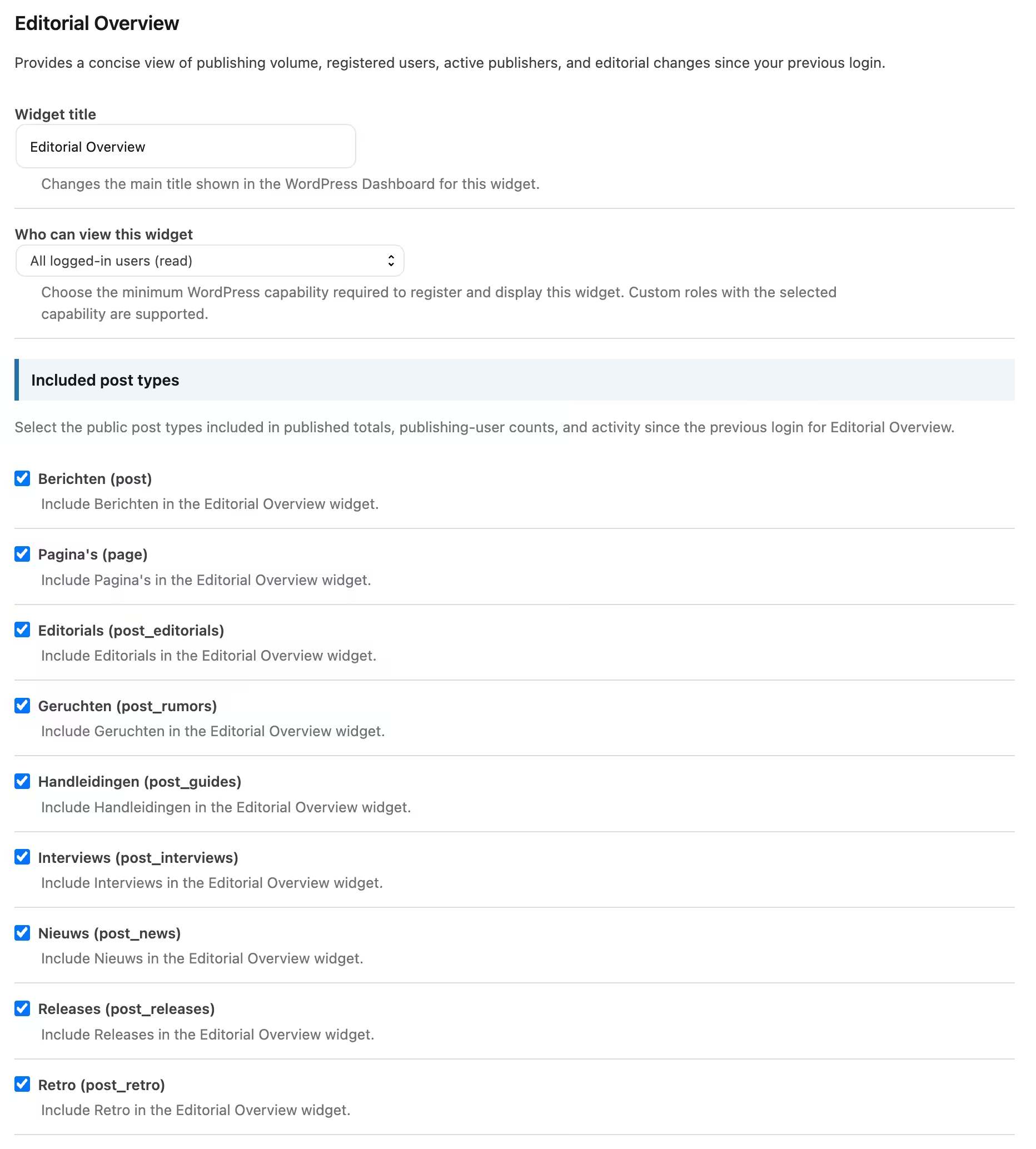
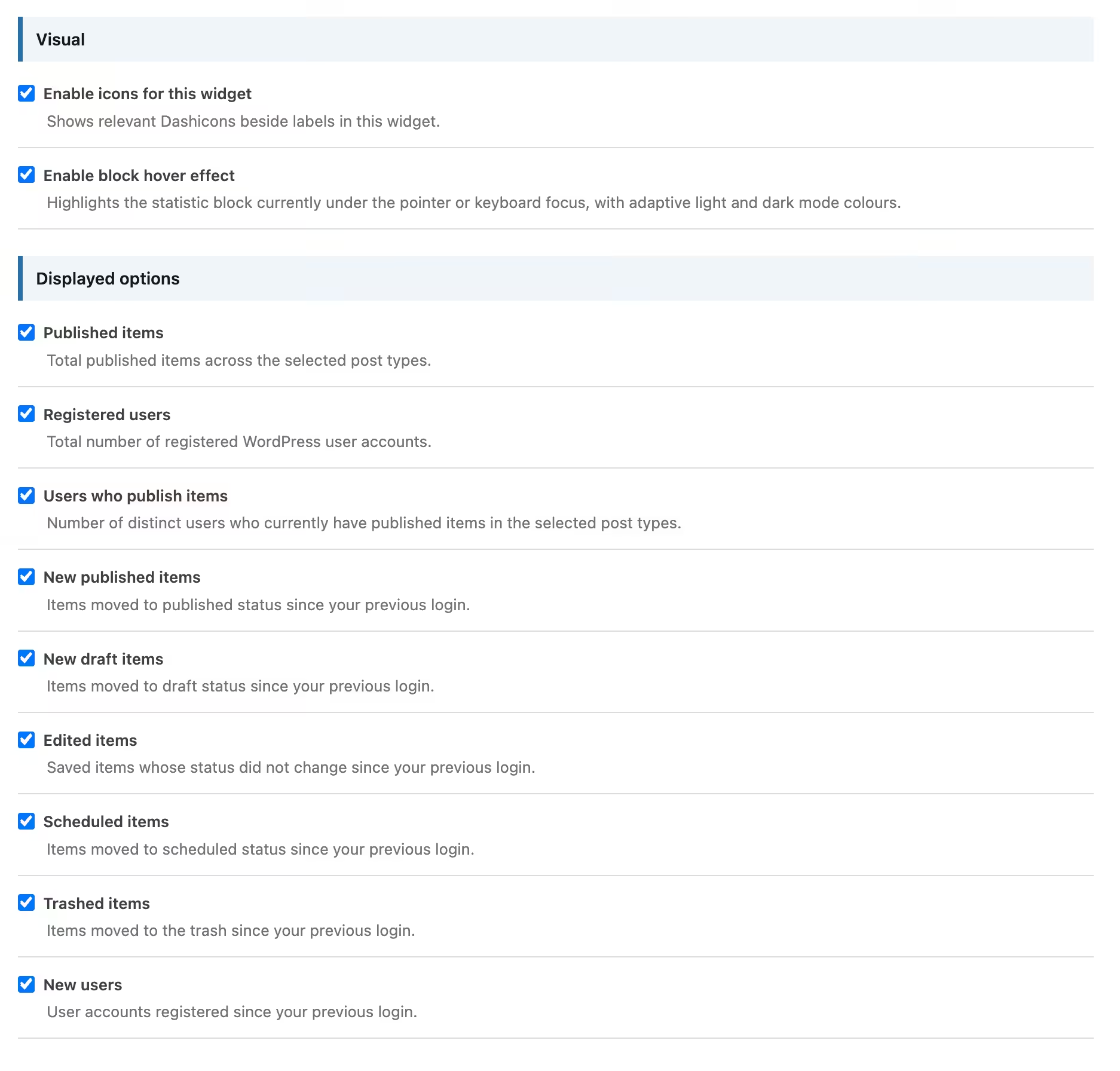
The Editorial Overview gives you a quick picture of the amount of content on your website and the people working on it. For example, you can see how many selected items have been published, how many users are registered on your website and how many different users have actually published content.
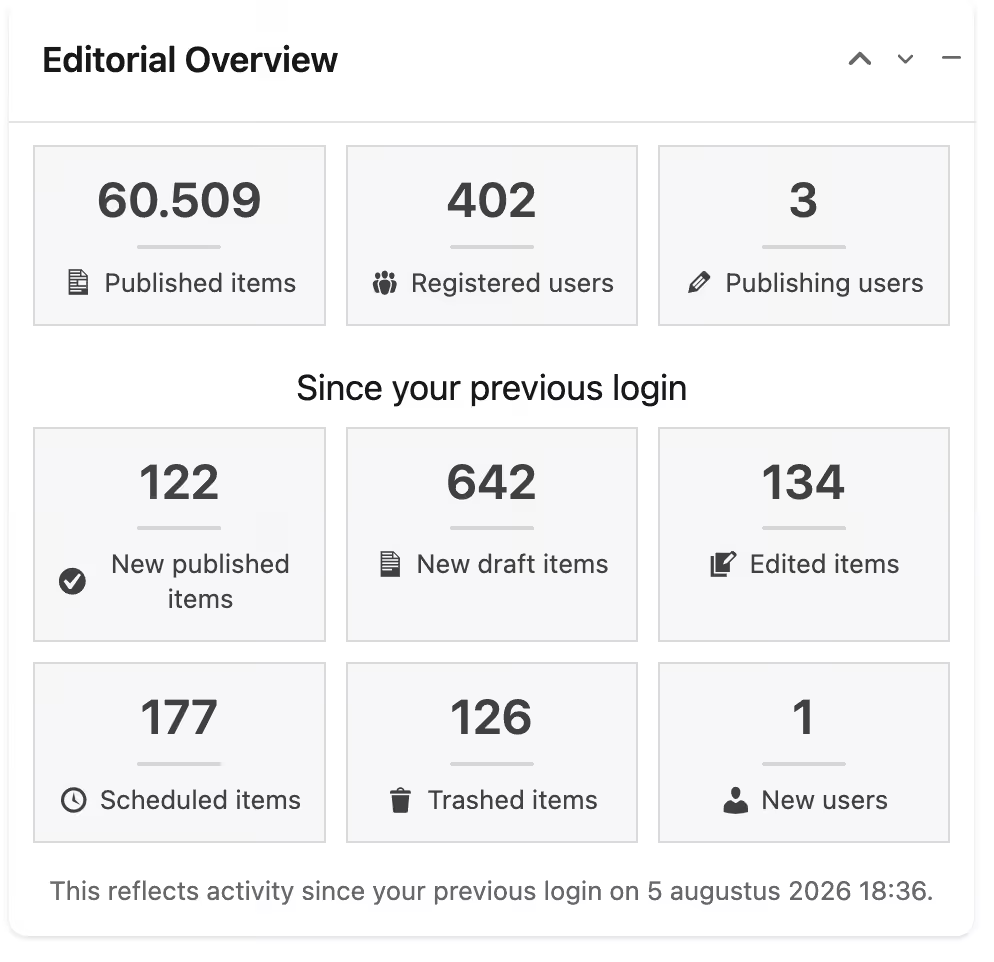
This makes the widget useful for both small websites and larger websites with multiple authors. You no longer need to open several different overview screens just to get a general idea of the size and activity of your website.
With the Pro version, this widget becomes even more useful. Pro can also show what has happened since your previous login. You can track new publications, new drafts, edited items, scheduled items, deleted items and newly registered users. This means you can see much more quickly what changed while you were away.
Content Breakdown: understand the status of your content without searching through separate screens
The Content Breakdown provides an overview of the different statuses for each selected content type. For example, you can see how many items are published, scheduled, saved as drafts or moved to the trash. It can also show how long ago the most recently modified content was updated.
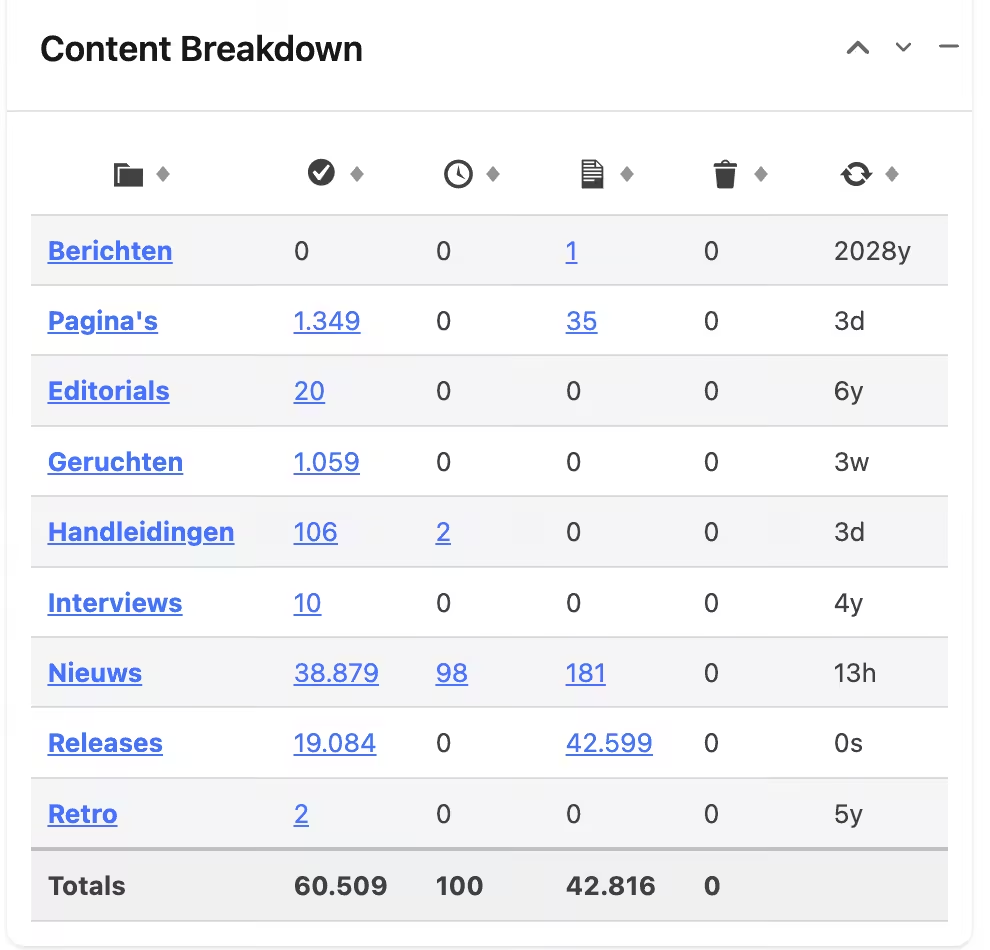
For someone who is not technical, this mainly means you do not need to know where WordPress normally hides all of this information. The plugin brings the most important numbers together in a clear overview, and the table can be sorted so you can quickly find what you are looking for.
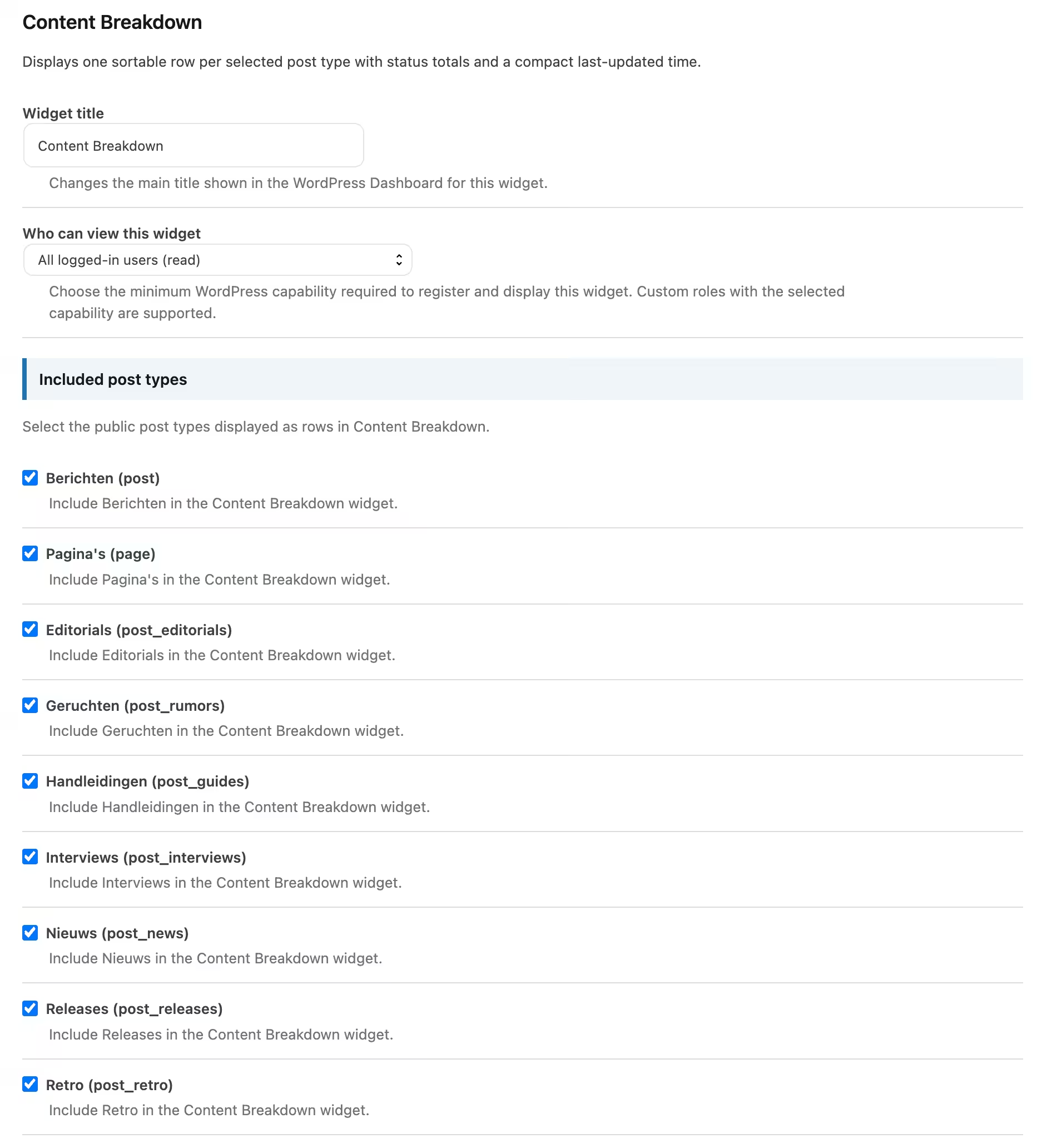
The Lite version can use posts and pages. With Pro, you can also include public custom post types. This is especially useful if your website uses products, portfolio items, events, reviews or other types of content added by a theme or plugin.
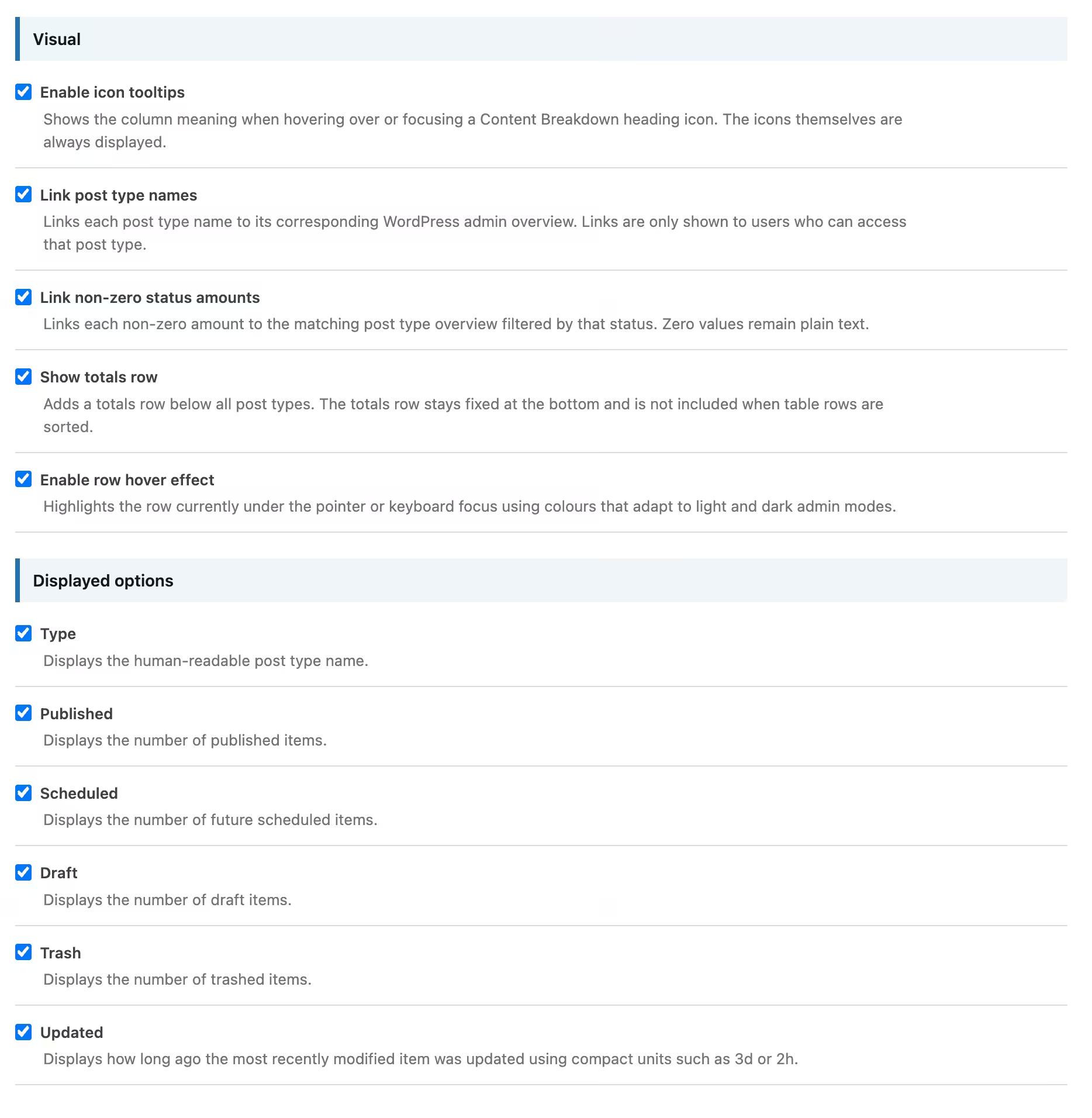
Pro also adds additional visual options, including tooltips and a hover effect that makes the row under your mouse easier to identify.
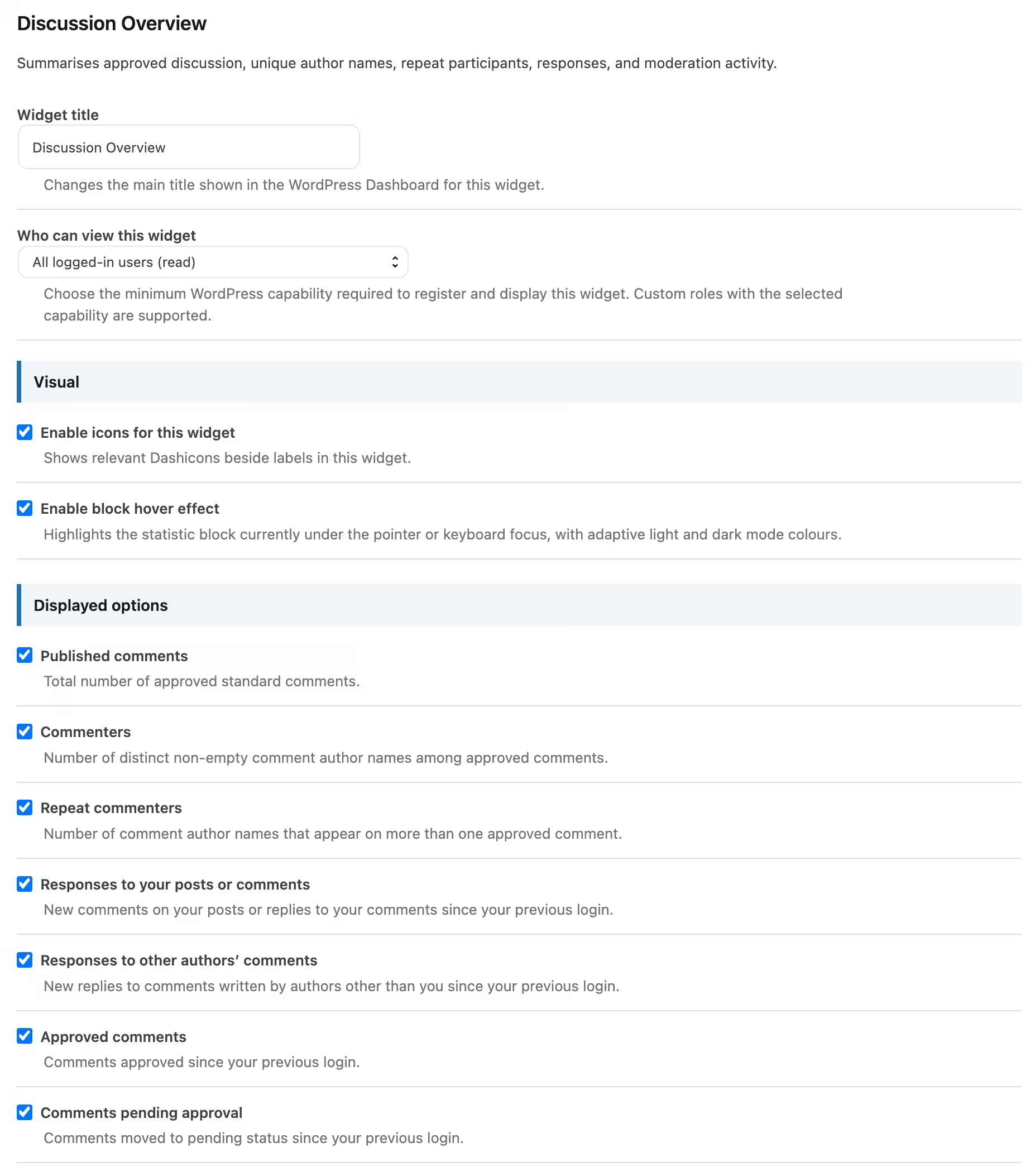
Discussion Overview: keep track of comments and engagement more easily
With the Discussion Overview, you gain insight into the comments on your website. You can see, among other things, how many approved comments there are, how many different names appear as commenters and how many of those people have commented more than once.
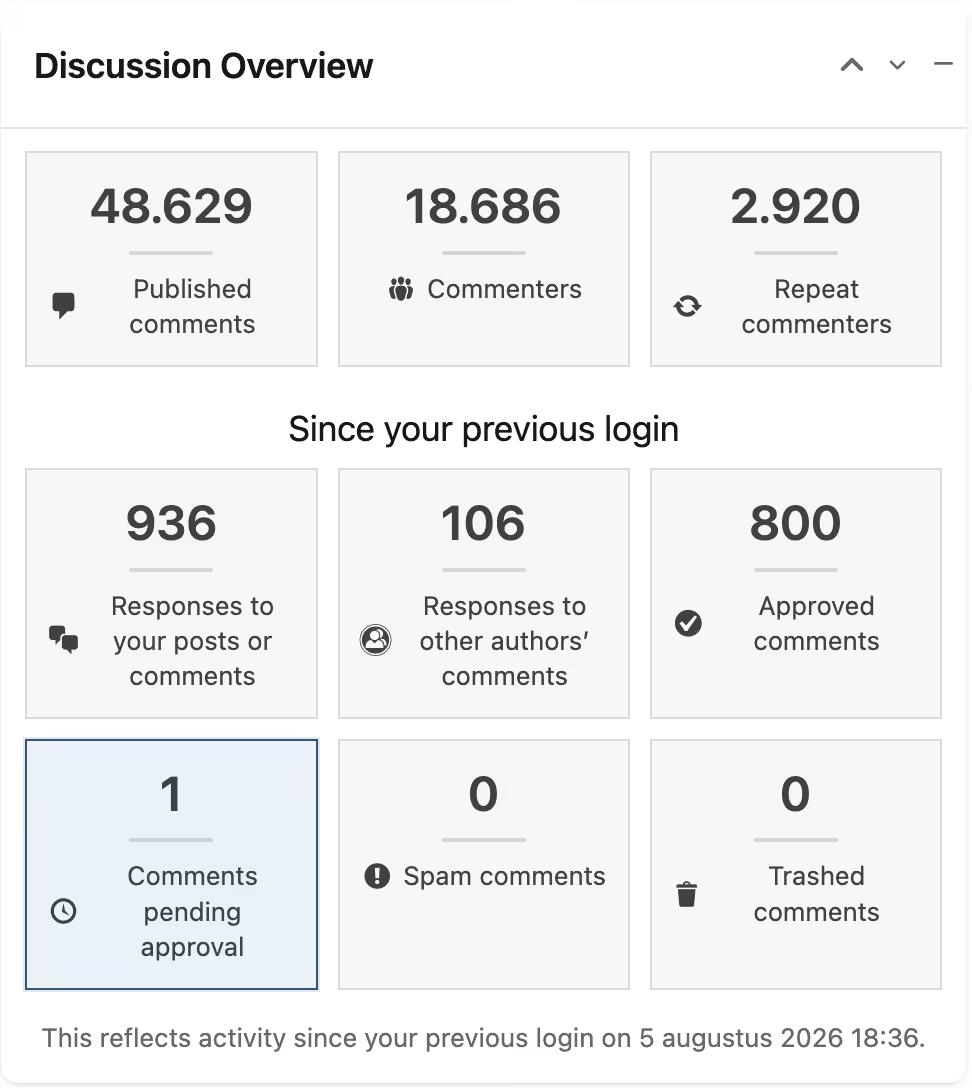
This gives you a quick impression of the level of interaction on your website without requiring complicated statistics. If comments are important to your website, you no longer need to open the full comments screen every time just to get a general overview.
Pro expands this with activity since your previous login. For example, you can see new replies to your posts or comments, track new replies to comments from other authors, and see how many comments have been approved, are awaiting approval, have been marked as spam or moved to the trash. Especially on websites with multiple authors or many comments, this can save a considerable amount of time.
Scheduled Content: never lose track of what is going to be published next
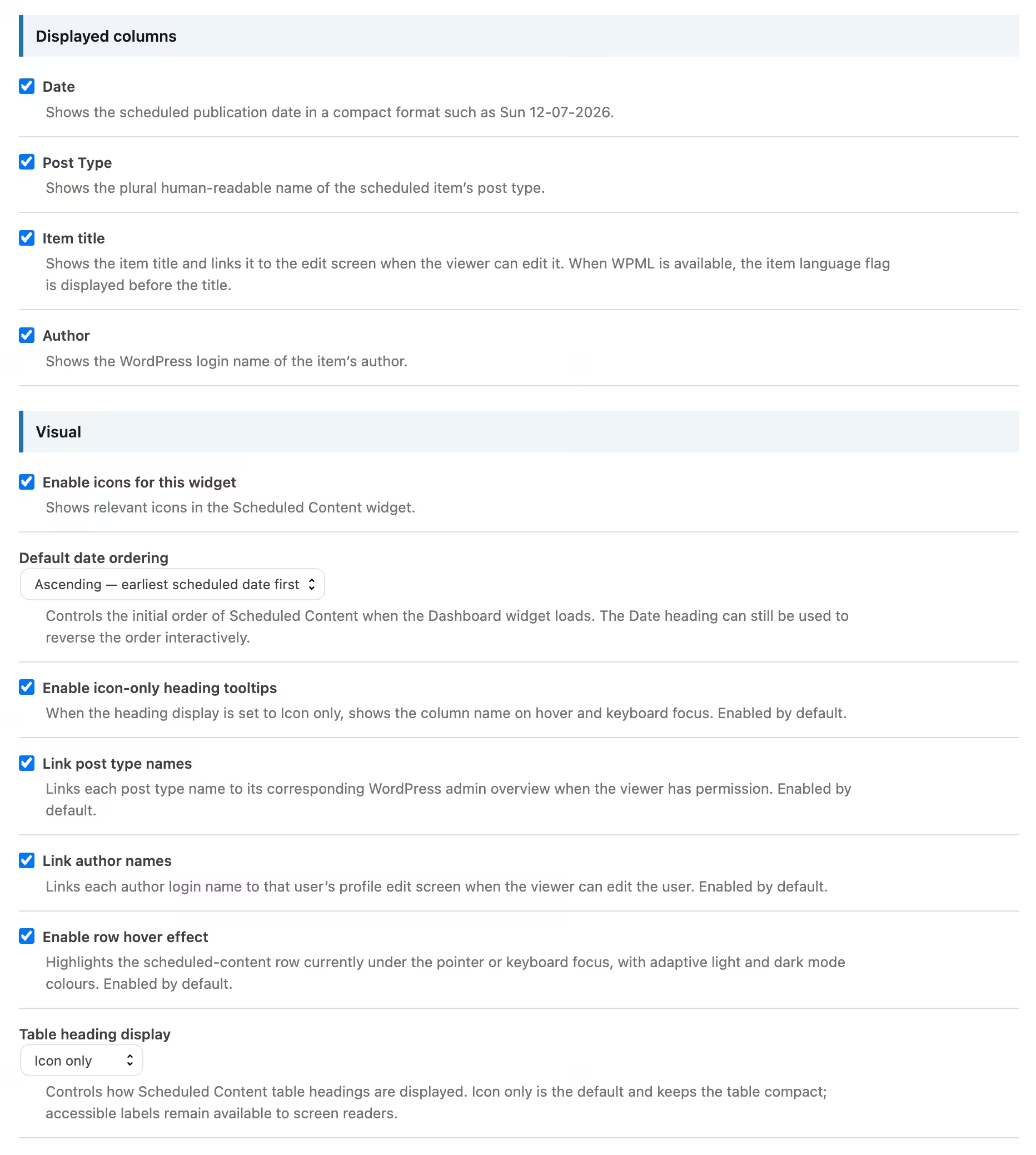
If you work ahead and schedule posts or pages, the Scheduled Content widget provides a clear overview of what is ready to be published. The table can display information such as the publication date, content type, title and author.
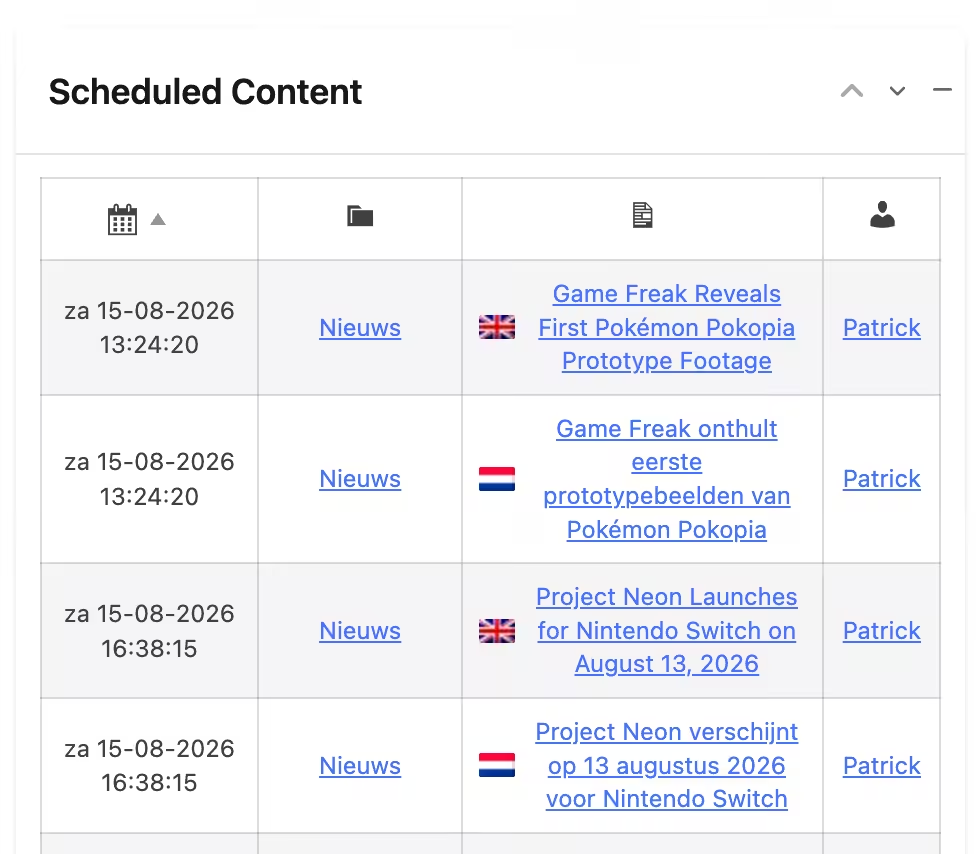
This lets you check directly from the dashboard whether enough content is scheduled for the coming period. You no longer need to repeatedly open the separate posts or pages screens and filter them for scheduled content.
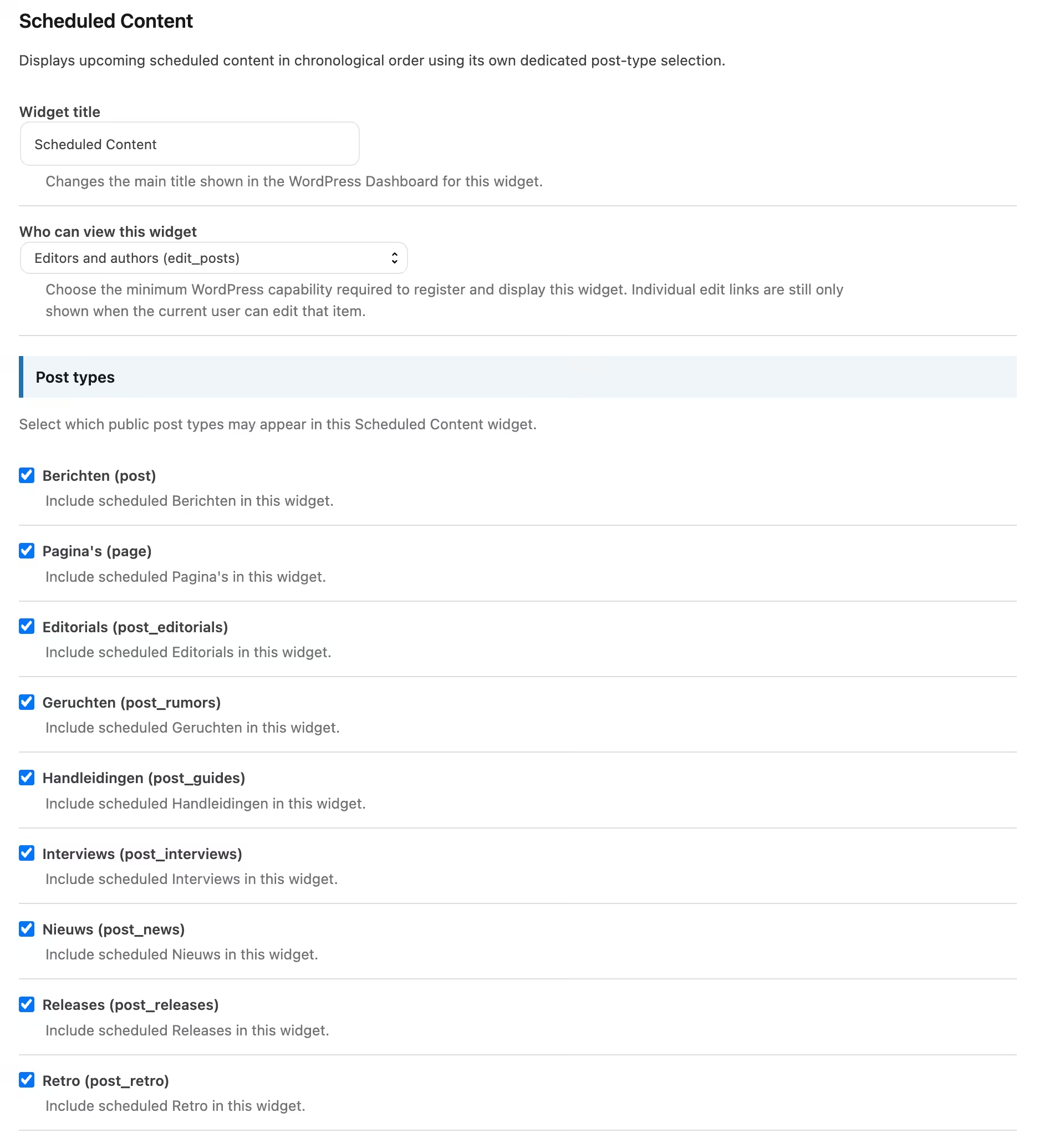
In Lite, you can use posts and pages. Pro also supports custom post types, allowing scheduled products, events or other custom content to be included in the overview as well.
Pro can also make content with the breaking tag stand out more clearly. The highlight color can be customized, making urgent or important scheduled publications immediately recognizable. Additional visual options, including tooltips and a hover effect, also make the table easier to read.
Available Image Sizes: discover which image sizes WordPress actually uses
When you upload an image, WordPress often creates multiple versions in different sizes. Themes and plugins can add even more image sizes of their own. As a result, a website can end up using considerably more image sizes than you might expect.
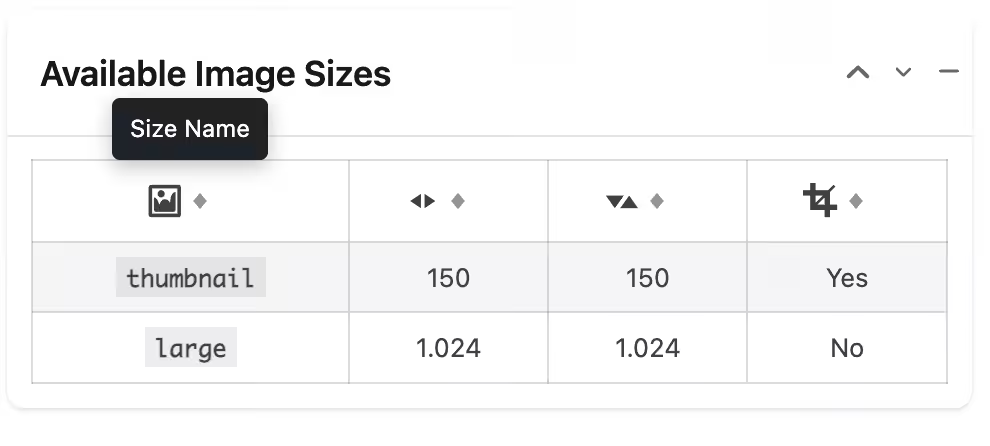
The Available Image Sizes widget shows which image sizes are currently registered in WordPress. You can view the name, maximum width, maximum height and how the image is cropped.
This is particularly useful when you want to understand why WordPress creates multiple files for the same image or when you want to review your website’s media settings. The plugin also warns you when many image sizes are registered, because every additional size may require extra storage space and processing when new images are uploaded.
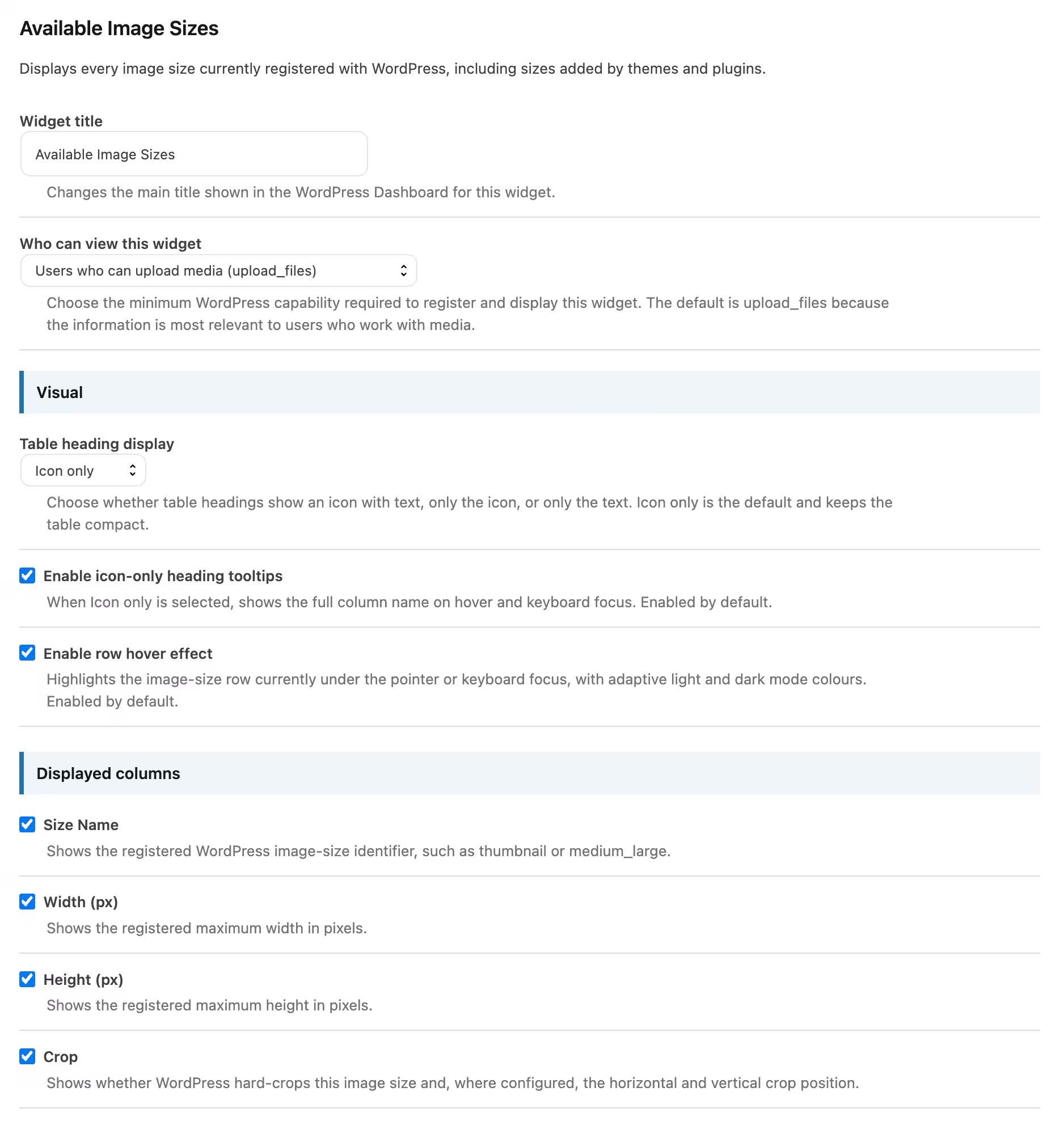
With Pro, you can further refine the presentation with options such as tooltips and a hover effect for the different rows.
Server Health and Info: technical information brought together in an understandable way
The Server Health and Info widget brings together a large amount of technical information that would normally be spread across WordPress, your hosting environment and different administration screens. You do not need to be a system administrator to benefit from it. The widget is mainly designed to help you see more quickly when something may require attention.
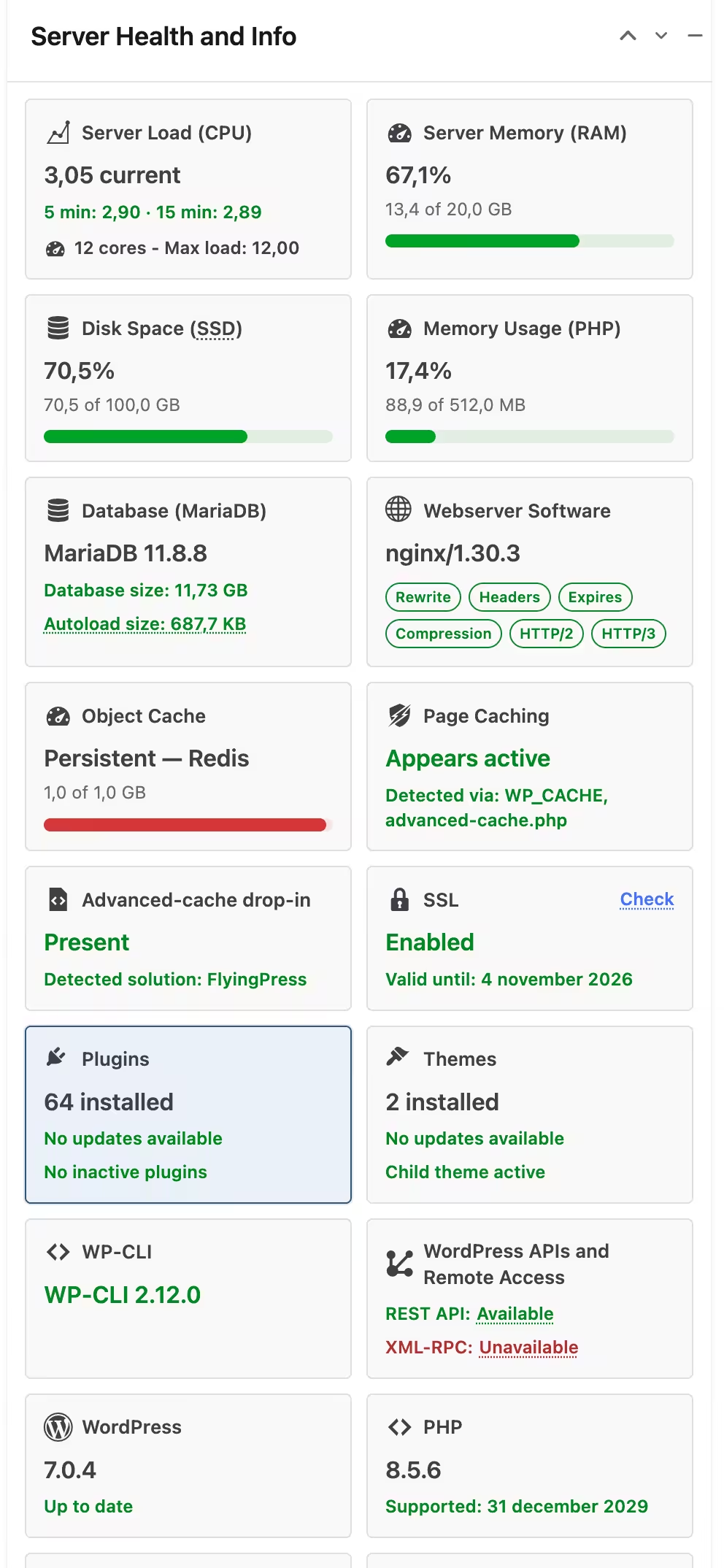
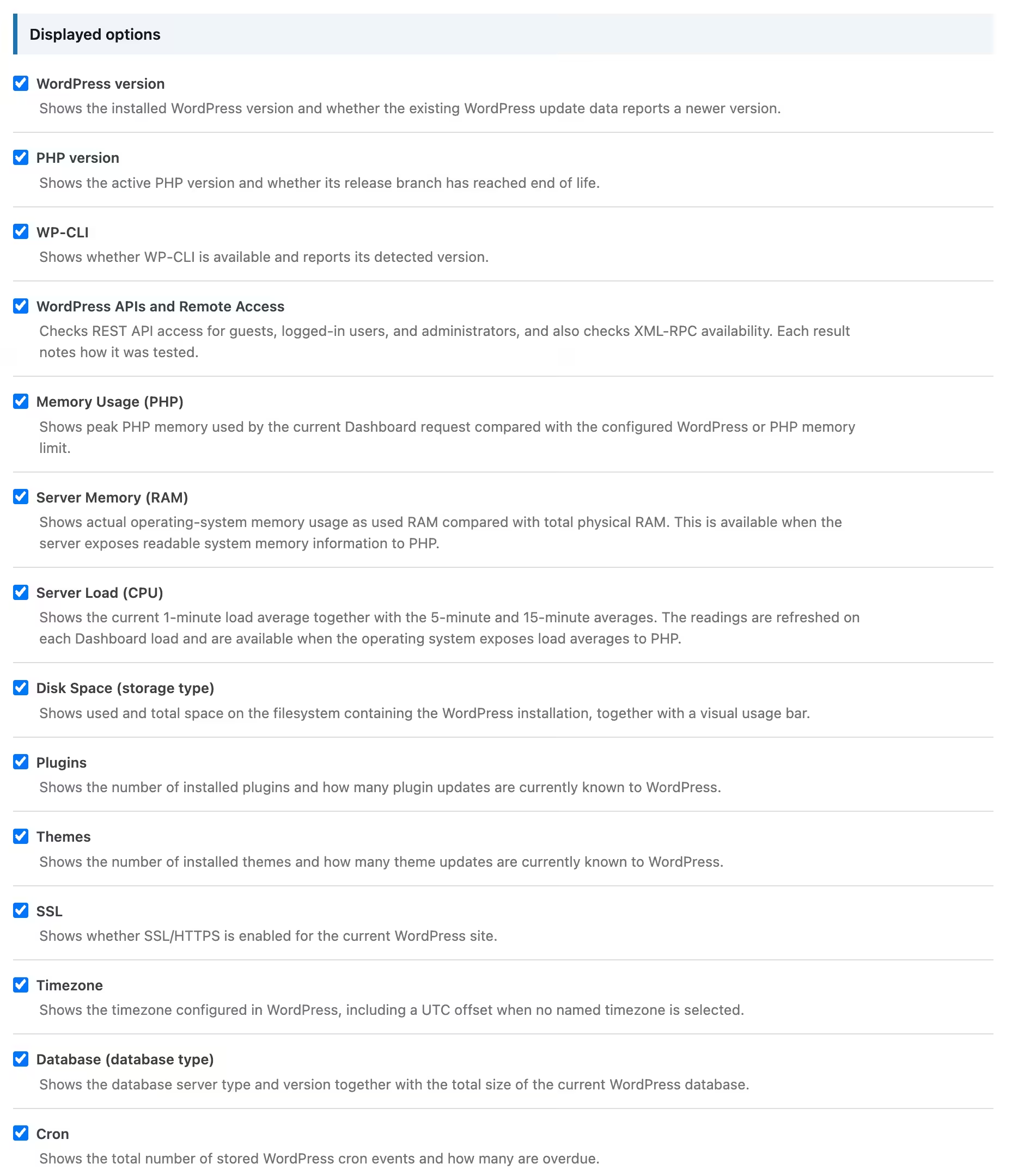
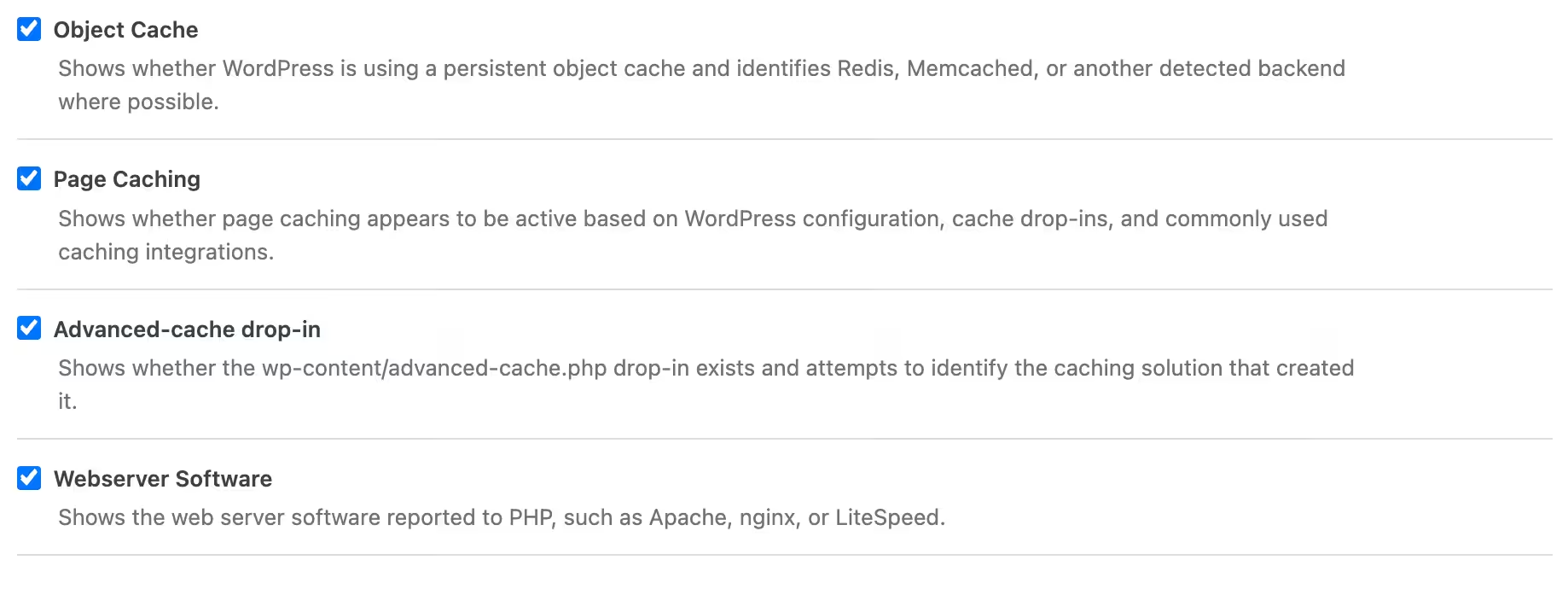
Depending on what your hosting environment makes available, the plugin can display information about your WordPress version, PHP version, WP-CLI, WordPress API access, PHP memory usage, server memory, CPU load, free disk space, plugins, themes, SSL/HTTPS, timezone, database, WordPress Cron, object caching, page caching, the advanced-cache feature and the web server software being used.
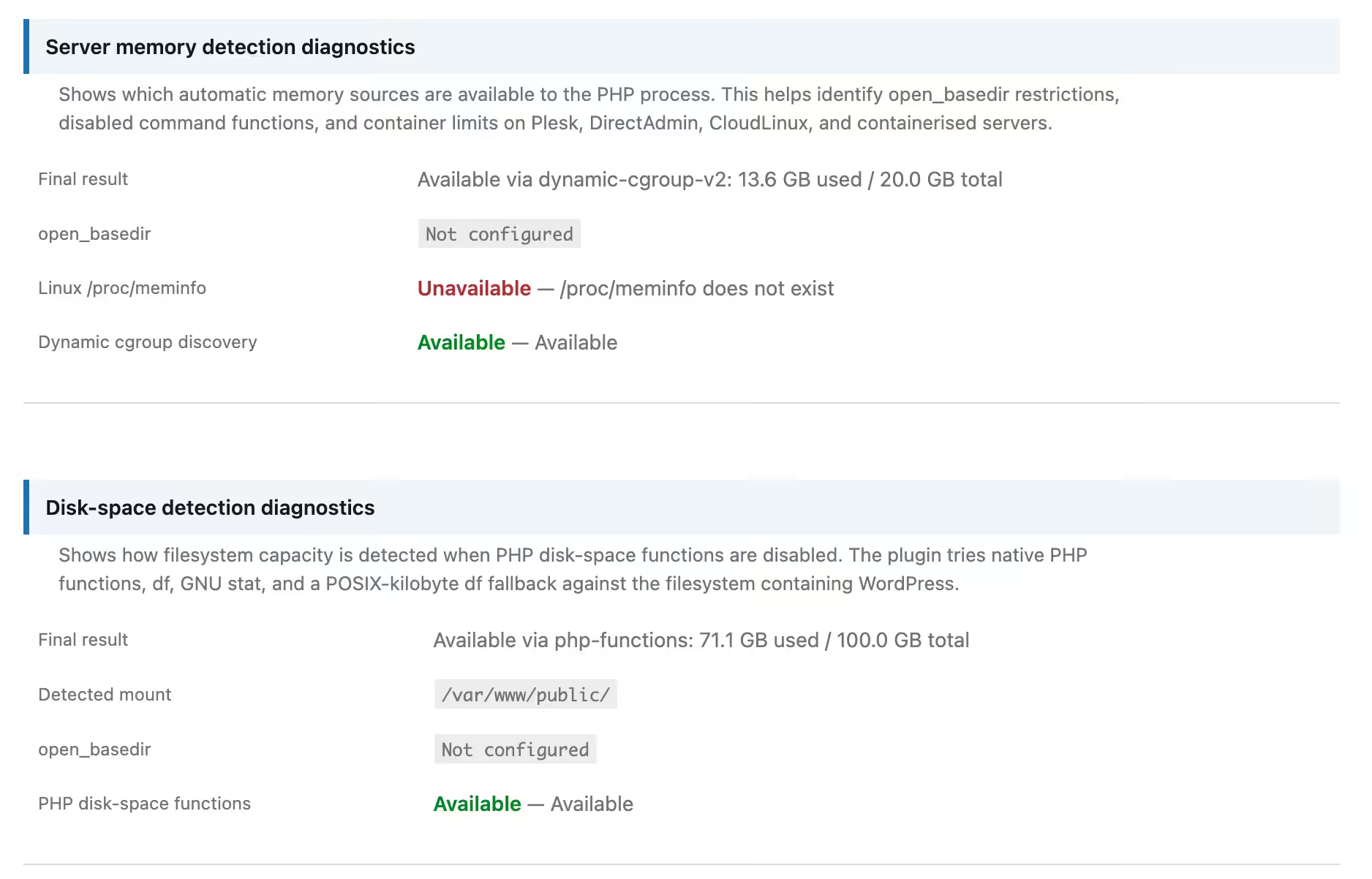
This allows you to see more quickly whether WordPress or plugins report available updates, how much storage space is being used, whether HTTPS is active and whether WordPress Cron tasks are overdue. The availability of some technical data depends on what your hosting provider allows WordPress and PHP to access.
The Pro version makes this widget more flexible and powerful. You can, among other things, change the order of the different server blocks, use a visual live preview while arranging them and display an action for overdue WordPress Cron tasks that can request a new cron run. Pro can also export the available server information, which can be useful when sharing details with a developer or hosting provider.
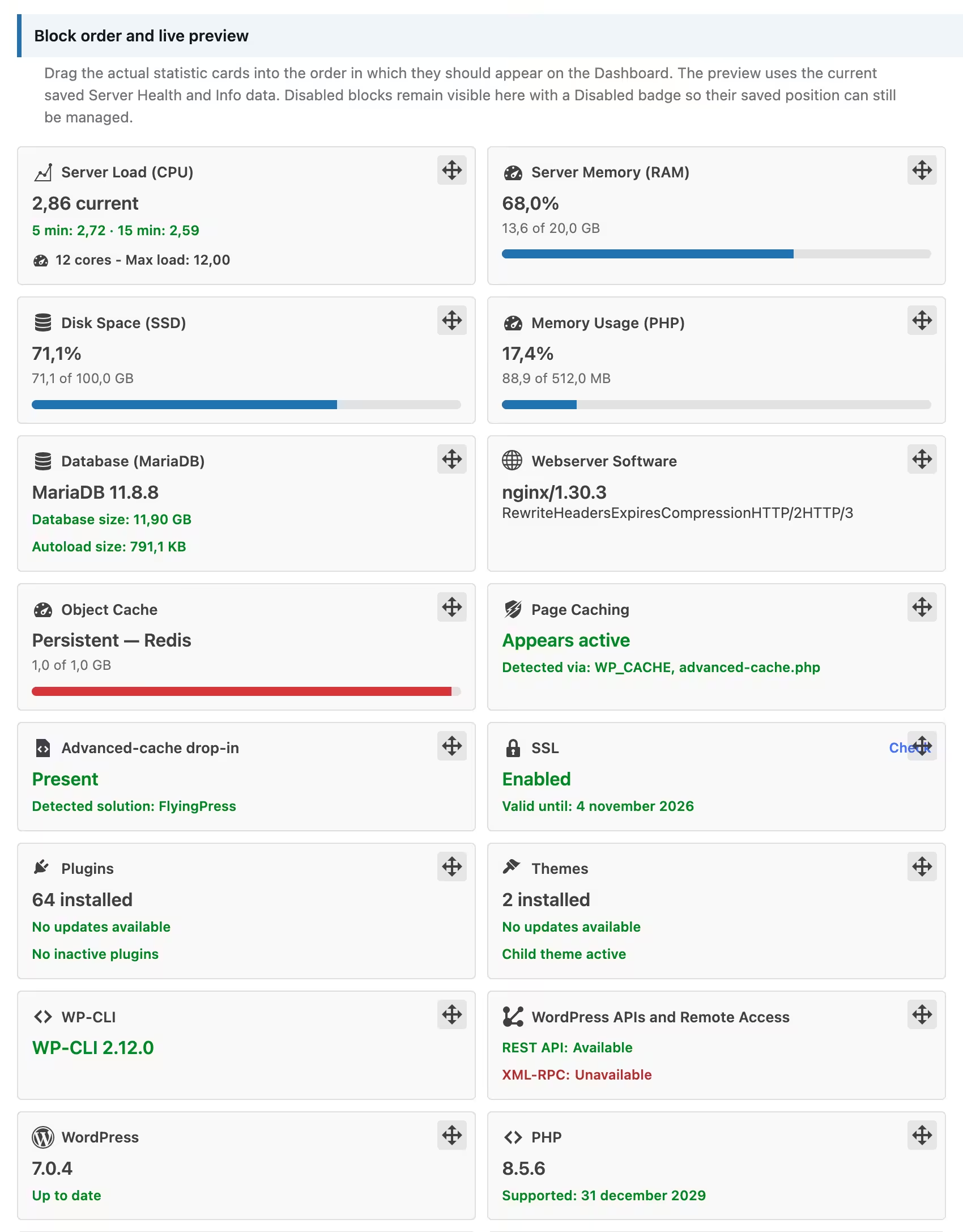
Full control over what appears on your dashboard
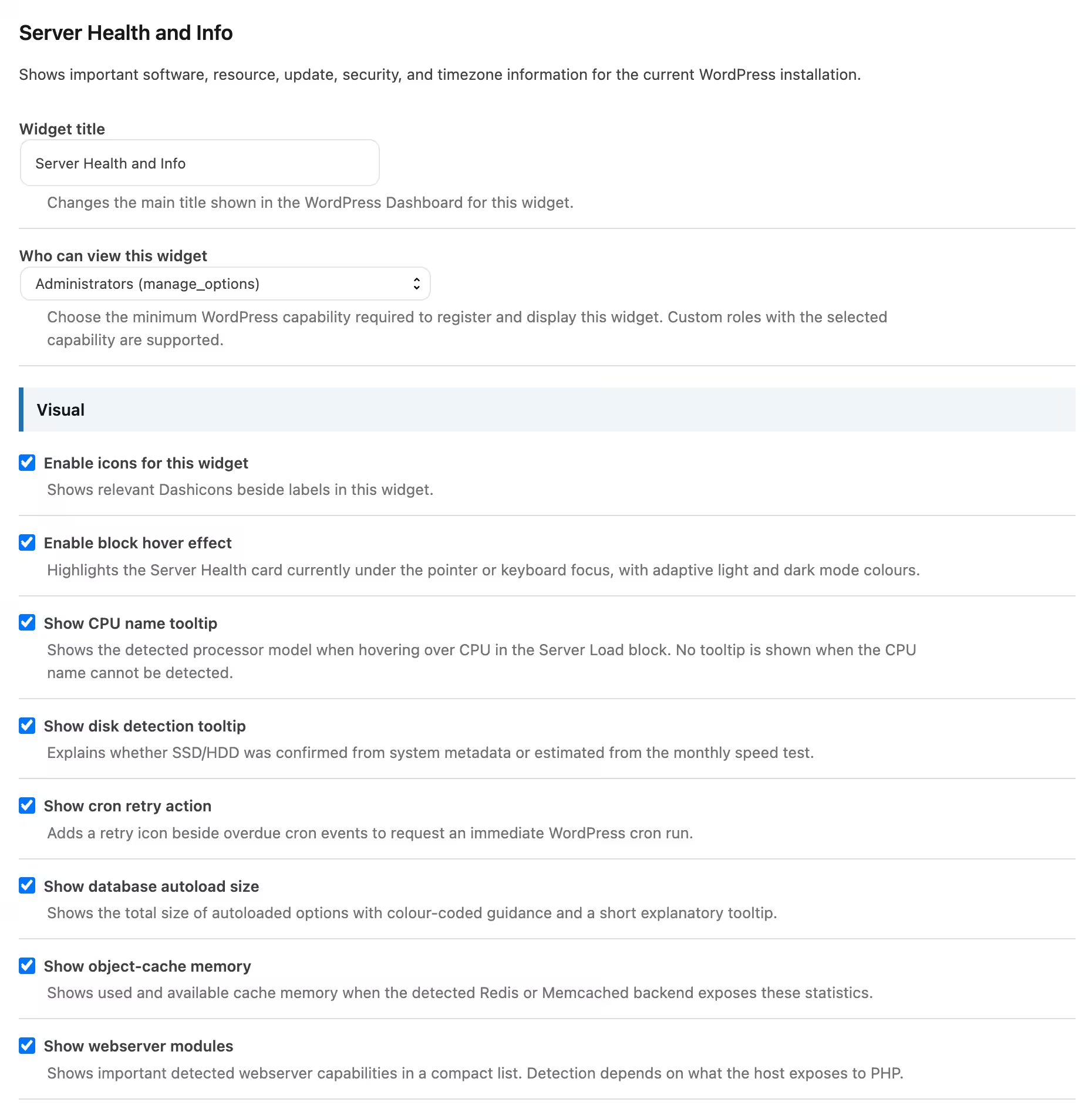
Not every WordPress user needs the same information. That is why Admin Dashboard Stats + Info is not designed as a fixed dashboard that you simply have to accept. You decide which widgets are used and which information appears within them.
You can also specify the minimum WordPress permission a user needs in order to view each widget. This is particularly useful when multiple people have access to your website. An editor, for example, does not necessarily need to see the same technical information as an administrator.
The Lite version already gives you plenty of control over the basic information. With Pro, you can further customize the dashboard with custom widget titles, support for custom post types, additional visual effects and control over the shared ADSI branding. This allows the plugin to better match the way you or your team works with WordPress.
How does Admin Dashboard Stats + Info work?
You do not need to be a programmer or technical WordPress specialist to use the plugin. After installation and activation, Admin Dashboard Stats + Info integrates into the existing WordPress administration area.
- Install and activate the plugin. You install Lite or Pro just like any other WordPress plugin through the administration panel.
- Open the settings. After activation, you can find the settings under Settings > Admin Dashboard Stats + Info. A direct link to the settings is also available on the regular Plugins screen.
- Choose which widgets you want to use. You do not need to enable all six sections. If you only want to see your content, scheduling and server information, for example, you can disable the other widgets.
- Decide which information is displayed. Within each widget, you can choose which available data you do or do not want to show.
- If needed, decide who is allowed to view a widget. This lets you tailor the available information to different users and roles within WordPress.
- Return to your WordPress dashboard. The enabled widgets will appear there together with the information available for your website.
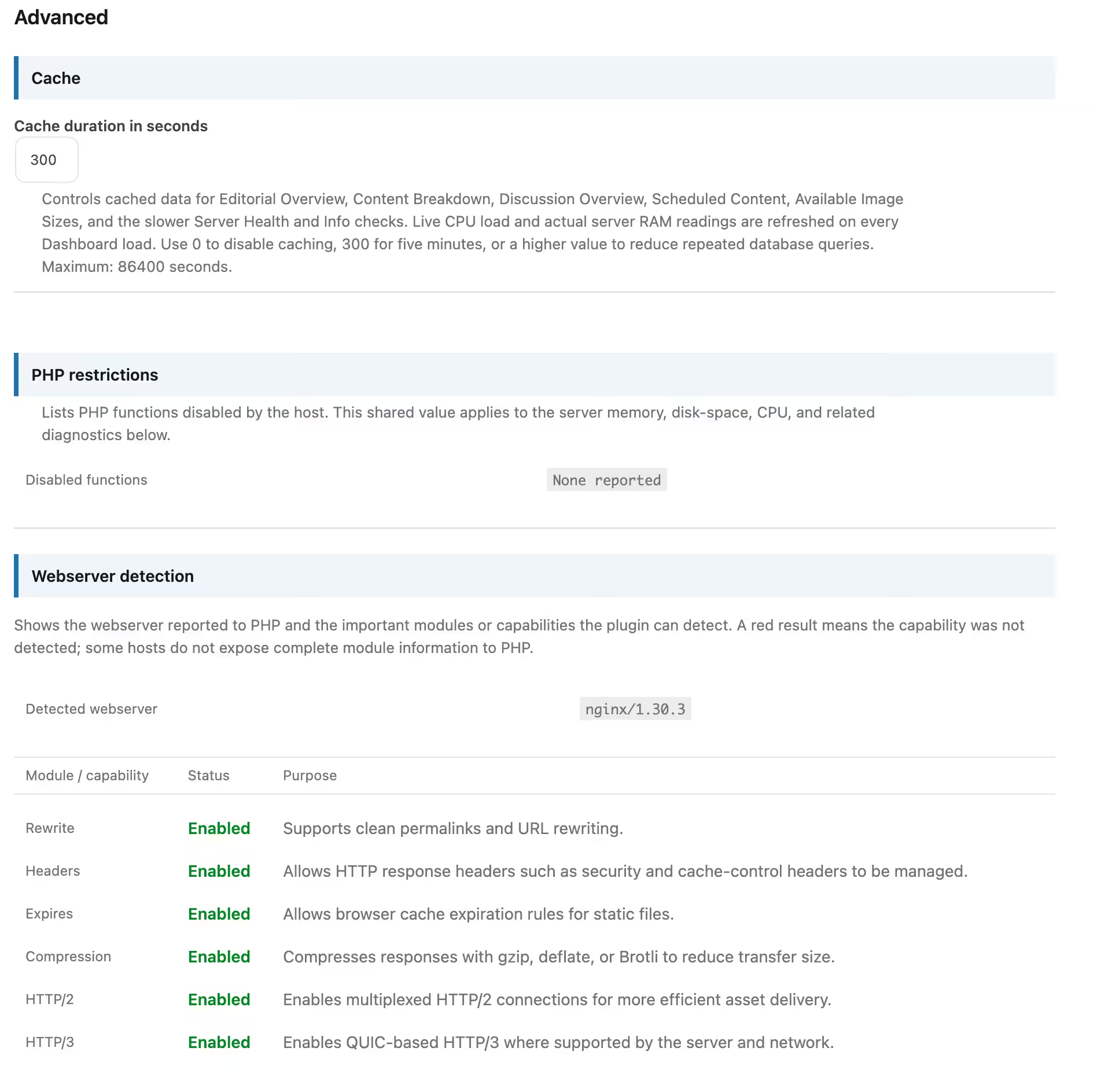
The plugin also aims to work efficiently with your website. Only enabled widgets are registered and only the data they require is calculated. More demanding calculations can be stored temporarily in a cache so WordPress does not need to fully recalculate them on every page view. Current CPU load and available server memory are, where your server makes this information available, read again when the dashboard is opened.
Lite or Pro: which version is right for you?
Admin Dashboard Stats + Info Lite is deliberately not a stripped-down demo. The free version contains all six core widgets and immediately gives you a more useful WordPress dashboard. Lite is ideal if you primarily want one central place for the most important information about your content, comments, scheduling, images and website environment.
Admin Dashboard Stats + Info Pro is intended for users who rely on this overview every day and want to decide for themselves how detailed, interactive and personalized their dashboard should be. Pro offers considerably more options, especially for websites with multiple authors, custom post types or larger amounts of content.
| Feature | Lite | Pro |
|---|---|---|
| Editorial Overview | Yes | Yes |
| Content Breakdown | Yes | Yes |
| Discussion Overview | Yes | Yes |
| Scheduled Content | Yes | Yes |
| Available Image Sizes | Yes | Yes |
| Server Health and Info | Yes | Yes |
| Enable or disable individual widgets | Yes | Yes |
| Control who can view a widget | Yes | Yes |
| Select posts and pages | Yes | Yes |
| Use custom post types | No | Yes |
| Custom titles for dashboard widgets | No | Yes |
| Customize or disable ADSI branding | No | Yes |
| Editorial activity since your previous login | No | Yes |
| Extended comment activity since your previous login | No | Yes |
| Hover effects for widgets and tables | No | Yes |
| Additional tooltips in content, scheduling and image tables | No | Yes |
| Highlight scheduled content with the “breaking” tag | No | Yes |
| Customize the “breaking” highlight color | No | Yes |
| Run WordPress Cron again for overdue tasks | No | Yes |
| Change the order of Server Health blocks | No | Yes |
| Live preview while arranging Server Health blocks | No | Yes |
| Export available Server Health information | No | Yes |
| Set cache duration yourself | No – fixed default setting | Yes |
| Export plugin settings | No | Yes |
| Import plugin settings | No | Yes |
| Optionally remove all plugin data when uninstalling | Yes | Yes |
Why choose Pro?
Lite gives you the overview. Pro gives you the overview and the control.
For a simple website that mainly uses posts and pages, Lite may be all you need. However, once WordPress becomes an important part of your daily work, the additional Pro features begin to show their value.
With Pro, you can see not only how much content you have, but also what has changed since your previous login. You can include custom post types, making the plugin a better fit for websites with online stores, events or other specialized content. You can refine the presentation, arrange server information according to your preferences, and export and import settings.
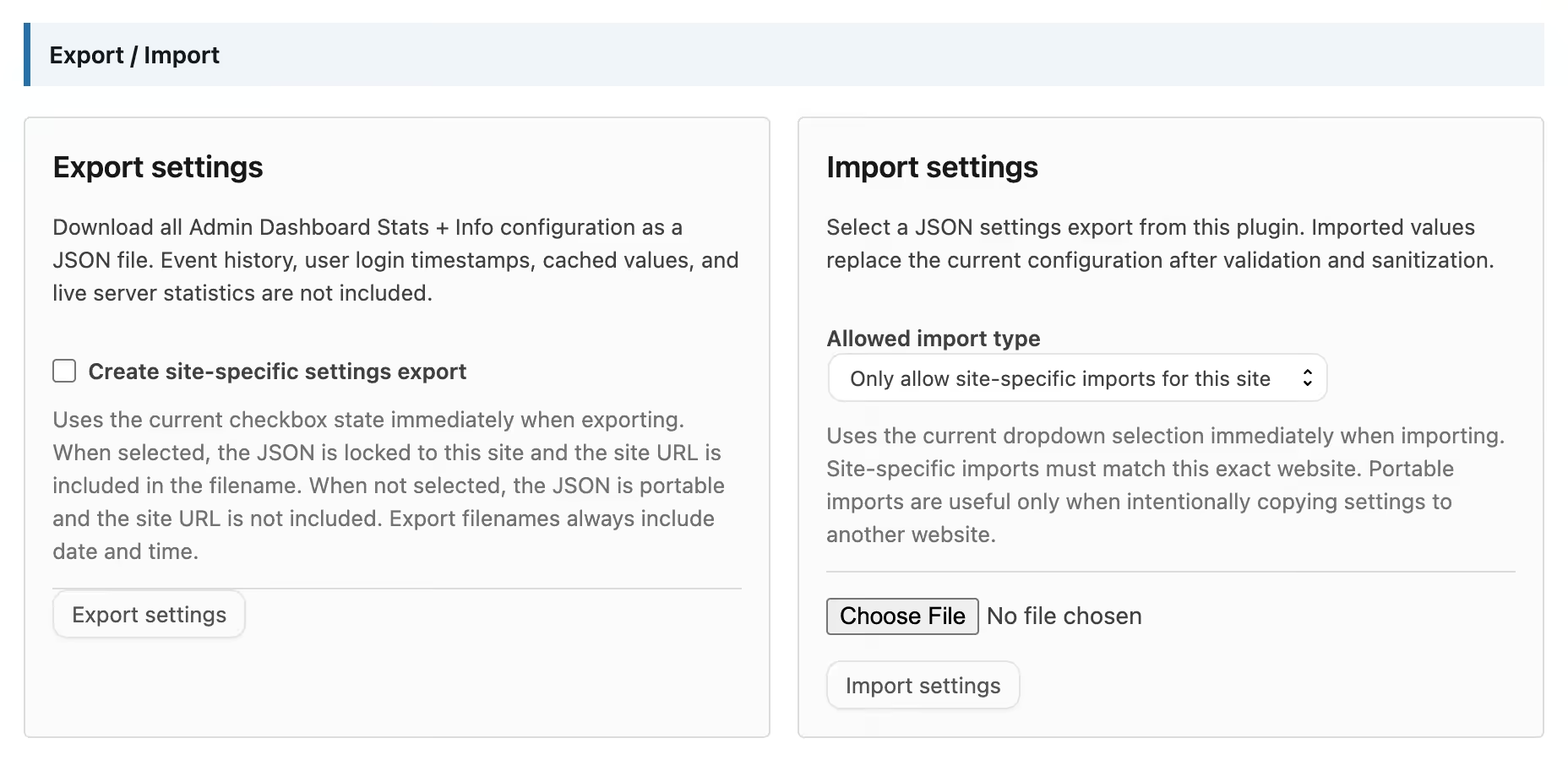
For administrators of multiple or more advanced WordPress websites, this means less manual checking, less searching and a dashboard that fits your workflow much better.
Use Lite when you mainly want a better WordPress overview. Choose Pro when you want that overview to become a genuine part of your daily WordPress administration.
Pricing
Admin Dashboard Stats + Info Lite
Free for everyone.
The Lite version will be available free of charge and includes all core widgets. This means you can use Editorial Overview, Content Breakdown, Discussion Overview, Scheduled Content, Available Image Sizes and Server Health and Info without paying anything.
Lite is therefore not simply intended as a trial version of the plugin. It is a fully usable free edition for users who want the most important dashboard information clearly available in one place.
DOWNLOAD LINK; admin-dashboard-stats-info-lite
Admin Dashboard Stats + Info Pro
The Pro version grants full access to the additional settings, extended activity information, custom post types, visual customization options, export and import features and other advanced functionality.
Admin Dashboard Stats + Info Pro is principally about making WordPress administration more useful and convenient rather than affecting how a website is discovered or consumed externally. My Lite edition already contains the six principal widgets, while Pro adds the more advanced customisation and productivity features such as custom post types, custom widget titles, branding controls, visual effects, tooltips and additional functionality.
Pay €39 per site once, and enjoy it forever.
A special launch price of €19 lifetime per site is available for a limited time.
Lifetime license and updates included. Standard support included for 6 months.
Additional support outside of that windows will have to be discussed on a per case basis.
Purchasing options and lite and pro versions will go live in the upcoming weeks.
Frequently Asked Questions
- What exactly does Admin Dashboard Stats + Info do?
- Do I need to be technical to use the plugin?
- Which widgets do I get with the free Lite version?
- What is the biggest advantage of Pro?
- Do I need Lite before I can install Pro?
- What happens if Lite and Pro are both installed?
- Can I choose which widgets appear on my dashboard?
- Can I control who is allowed to see certain information?
- Can Lite display custom post types?
- What does “activity since your previous login” mean?
- What can Server Health and Info tell me?
- Does Server Health and Info replace my hosting provider or a professional monitoring system?
- Will the plugin make my WordPress dashboard slower?
- Can I decide how long data is cached in Pro?
- Can I save my settings or move them to another website?
- Can I remove all stored data when I uninstall the plugin?
- Which WordPress and PHP versions do I need?
- What exactly does Admin Dashboard Stats + Info do?
- Admin Dashboard Stats + Info adds several information panels to the standard WordPress dashboard. These panels bring together information that would otherwise be spread across multiple WordPress screens. Examples include the number of published items and drafts, scheduled publications, comments, registered image sizes and technical information about WordPress and your server.
The goal is not to make WordPress more complicated, but to help you see more quickly what is happening on your website.
- Admin Dashboard Stats + Info adds several information panels to the standard WordPress dashboard. These panels bring together information that would otherwise be spread across multiple WordPress screens. Examples include the number of published items and drafts, scheduled publications, comments, registered image sizes and technical information about WordPress and your server.
- Do I need to be technical to use the plugin?
- No. The main features are specifically intended to make information more accessible. For example, you do not need to know how to look up database information, PHP memory or WordPress Cron details yourself. When this type of information is available, the plugin presents it in a clear dashboard widget.
Some parts of Server Health and Info are technical by nature, but you do not have to use all of them. Each widget and many individual data points can be disabled when they are not relevant to you.
- No. The main features are specifically intended to make information more accessible. For example, you do not need to know how to look up database information, PHP memory or WordPress Cron details yourself. When this type of information is available, the plugin presents it in a clear dashboard widget.
- Which widgets do I get with the free Lite version?
- Lite includes all six core widgets: Editorial Overview, Content Breakdown, Discussion Overview, Scheduled Content, Available Image Sizes and Server Health and Info. This means you are not limited to just one or two sample widgets. The main differences compared with Pro are the additional settings, extended activity information, support for custom post types and further customization options.
- What is the biggest advantage of Pro?
- Pro turns the core widgets into a much more flexible administration system. You gain more insight into what has happened since your previous login, can use custom post types and get more options for adapting the different widgets to your preferences.
You also get features such as configurable widget titles, visual hover effects, extra tooltips, highlighting for important scheduled content, customizable Server Health ordering, server information exports, configurable caching and plugin settings export and import.
- Pro turns the core widgets into a much more flexible administration system. You gain more insight into what has happened since your previous login, can use custom post types and get more options for adapting the different widgets to your preferences.
- Do I need Lite before I can install Pro?
- No. The Pro version is completely standalone and does not require Lite. You can install and use Pro directly.
- What happens if Lite and Pro are both installed?
- Both plugins can be present on the same WordPress installation, but only one edition should be active. When Pro is activated, the Lite version is automatically deactivated and Pro remains active. If you try to activate Lite while Pro is already active, Lite will automatically be deactivated again and Pro will remain active. WordPress will display a notice so it is clear what happened.
- Can I choose which widgets appear on my dashboard?
- Yes. You do not need to use every section. In the settings, you can enable or disable each available dashboard widget individually. A disabled widget is not registered for the dashboard, and the associated information therefore does not need to be calculated.
For example, you could choose to use only Content Breakdown, Scheduled Content and Server Health and Info if those are the three sections that matter to you.
- Yes. You do not need to use every section. In the settings, you can enable or disable each available dashboard widget individually. A disabled widget is not registered for the dashboard, and the associated information therefore does not need to be calculated.
- Can I control who is allowed to see certain information?
- Yes. For each widget, you can specify the minimum WordPress capability required to view it. A capability is simply a WordPress permission, such as permission to manage certain content. This also makes the plugin suitable for websites with multiple user roles. You can, for example, restrict technical information to users with sufficient administrator permissions while making other dashboard information more widely available.
- Can Lite display custom post types?
- For the relevant content settings, Lite focuses on standard WordPress posts and pages. Support for public custom post types is part of Pro. Custom post types are often added by themes and plugins. An online store may use products, for example, while an events website may use a separate content type for events. With Pro, these public content types can be included in the relevant overviews.
- What does “activity since your previous login” mean?
- Pro can track changes for different sections that have taken place since the relevant user last logged in. In Editorial Overview, this can include new publications, drafts, edits, scheduled content, deleted content and new users.
In Discussion Overview, it can include new replies, approved comments, comments awaiting approval, spam and deleted comments. This means you do not have to open multiple administration screens after logging in just to work out what changed while you were away.
- Pro can track changes for different sections that have taken place since the relevant user last logged in. In Editorial Overview, this can include new publications, drafts, edits, scheduled content, deleted content and new users.
- What can Server Health and Info tell me?
- This widget aims to bring together important information about your WordPress installation and hosting environment in a clear overview. Examples include the WordPress and PHP versions being used, memory usage, server load, storage space, available updates, SSL, database information, WordPress Cron and different forms of caching. Not every hosting provider makes the same technical information available. If certain server information cannot be accessed through PHP, the plugin cannot reliably display it either.
- Does Server Health and Info replace my hosting provider or a professional monitoring system?
- No. The widget is intended as a useful first overview within WordPress. It can quickly draw your attention to notable information and makes many technical details easier to access, but it does not replace a specialist external monitoring system, security service or support from your hosting provider.
- Will the plugin make my WordPress dashboard slower?
- The plugin is designed to avoid unnecessary work. Only enabled widgets are registered, and the required data is calculated only for those sections. More demanding calculations are cached so WordPress does not need to fully recalculate them on every dashboard view. Some current server measurements, such as available CPU load or RAM information, are retrieved again when the dashboard loads if your server makes this information available.
- Can I decide how long data is cached in Pro?
- Yes. In Pro, you can adjust the cache duration. This allows you to decide the balance between recalculating information more frequently and reducing repeated database operations. Lite uses a fixed default value for this.
- Can I save my settings or move them to another website?
- With Pro, you can export the Admin Dashboard Stats + Info configuration to a JSON file and import it again later. This can be useful as a backup of your settings or when you intentionally want to use similar settings on another website.
Pro supports both site-bound exports and transferable exports. A site-bound export is linked to the relevant website, while a transferable export is intended for copying settings to another installation.
- With Pro, you can export the Admin Dashboard Stats + Info configuration to a JSON file and import it again later. This can be useful as a backup of your settings or when you intentionally want to use similar settings on another website.
- Can I remove all stored data when I uninstall the plugin?
- Yes. Both Lite and Pro include a setting that allows you to specify that all plugin data should be removed when the plugin is uninstalled. When this option is enabled, settings, tracked login data and stored activity history are removed, among other things. This removal cannot be undone. If the option is not enabled, the settings and historical data remain available so they can be used again later.
- Which WordPress and PHP versions do I need?
- The current Lite and Pro versions require WordPress 6.5 or newer and PHP 8.2 or newer. Check these versions before installing the plugin if your website has not been updated for some time.
Turn your WordPress dashboard into a place that is genuinely useful
Your WordPress dashboard is where almost every administration session begins. Admin Dashboard Stats + Info makes sure that this first page immediately tells you more about your website.
With Lite, you get the six most important dashboards for content, comments, scheduling, images and technical information completely free. With Pro, you can turn that into a more personalized and powerful administration overview with additional activity insights, support for custom post types, greater visual control and advanced administration features.