
Decide from WordPress which AI, LLM and other crawlers can access your website
AEO – Robots.txt Server gives you a clear and practical way to manage your WordPress website’s robots.txt without having to create or edit a physical text file yourself.
Modern websites are not only visited by traditional search engines. AI assistants, LLM crawlers, model-training bots, retrieval systems, preview services, SEO tools and all kinds of other automated systems can also visit your website. This makes it increasingly difficult to remember what each crawler is used for and which ones you do or do not want to give access to.
AEO – Robots.txt Server brings these choices into the familiar WordPress administration area. The list of AI and LLM crawlers is displayed alphabetically and for every supported crawler you can easily choose between Allow, Disallow or N/A. The plugin then automatically builds your virtual /robots.txt.
The free Lite version gives you the most important foundation: manage individual AI and LLM crawlers, apply built-in baseline rules and have your virtual robots.txt generated directly from WordPress.
If you want to go further and allow or block additional paths yourself, protect crawl budget, manage search and WordPress system paths, configure Googlebot-Image, control PDF indexing, use Crawl-delay, manage sitemaps, add your own robots.txt header and import or export settings, AEO – Robots.txt Server Pro gives you full control.
Table of Contents
- Why I created AEO – Robots.txt Server
- What is robots.txt and why is it important?
- The key features
- How does AEO – Robots.txt Server work?
- Lite or Pro: which version is right for you?
- Why choose Pro?
- Pricing
- Frequently Asked Questions
- Get more control over the crawlers that visit your website
Why I created AEO – Robots.txt Server
A robots.txt file has existed for a long time and may seem fairly simple at first. You specify a user agent, indicate which paths may or may not be visited and you are done. In reality, crawler management has become considerably more complicated.
In addition to well-known search engine bots, there are now more and more automated systems visiting websites. Some crawlers collect information for traditional search results, while others are used for AI search features, retrieval, previews, analytics or model training. There are also general scrapers and other bots whose purpose is not always clear to the average website administrator.
You can, of course, manage all these rules yourself in a physical robots.txt file. However, you then need to know which user agents exist, how the syntax works, where the file is located and how to prevent rules from unintentionally affecting one another. As the list grows, the chance of the file becoming difficult to manage also increases.
I therefore wanted a WordPress-native solution that would allow me to make these choices from the administration area. No editing separate files, but a clear list where I could deliberately indicate for each crawler whether I want to allow it, block it or add no additional rule.
That is how AEO – Robots.txt Server was created.
The plugin is designed to make robots.txt management clearer while still providing enough room for more advanced control when needed. Lite therefore focuses on the core: managing AI and LLM crawlers. Pro builds on this with features for websites that want to manage their complete robots.txt policy more extensively from WordPress.
I also considered it important that the plugin could work with existing WordPress solutions. AEO – Robots.txt Server is therefore WPML-aware and, in Pro, can also include sitemap information from Yoast SEO, Rank Math and WPML.
What is robots.txt and why is it important?
robots.txt is a public text file that is normally available at:
https://yourdomain.com/robots.txt
In this file, a website owner can provide instructions for automated crawlers. A crawler usually identifies itself using what is known as a user agent. Based on this, you can indicate, for example, whether a specific crawler may or may not visit part of your website.
A simple rule could look like this:
User-agent: ExampleBot

Disallow: /private/
This asks ExampleBot not to crawl the /private/ path.
It is important to understand that robots.txt is an instruction mechanism, not a security mechanism. A crawler that properly follows the Robots Exclusion Protocol may respect the rules. A malicious scraper or bot can choose to ignore them.
Robots.txt should therefore never be used to secure confidential information. Content that genuinely needs to remain private must be protected using actual access controls.
For crawler management, however, robots.txt remains an important and widely used way to indicate how automated systems should interact with your website.
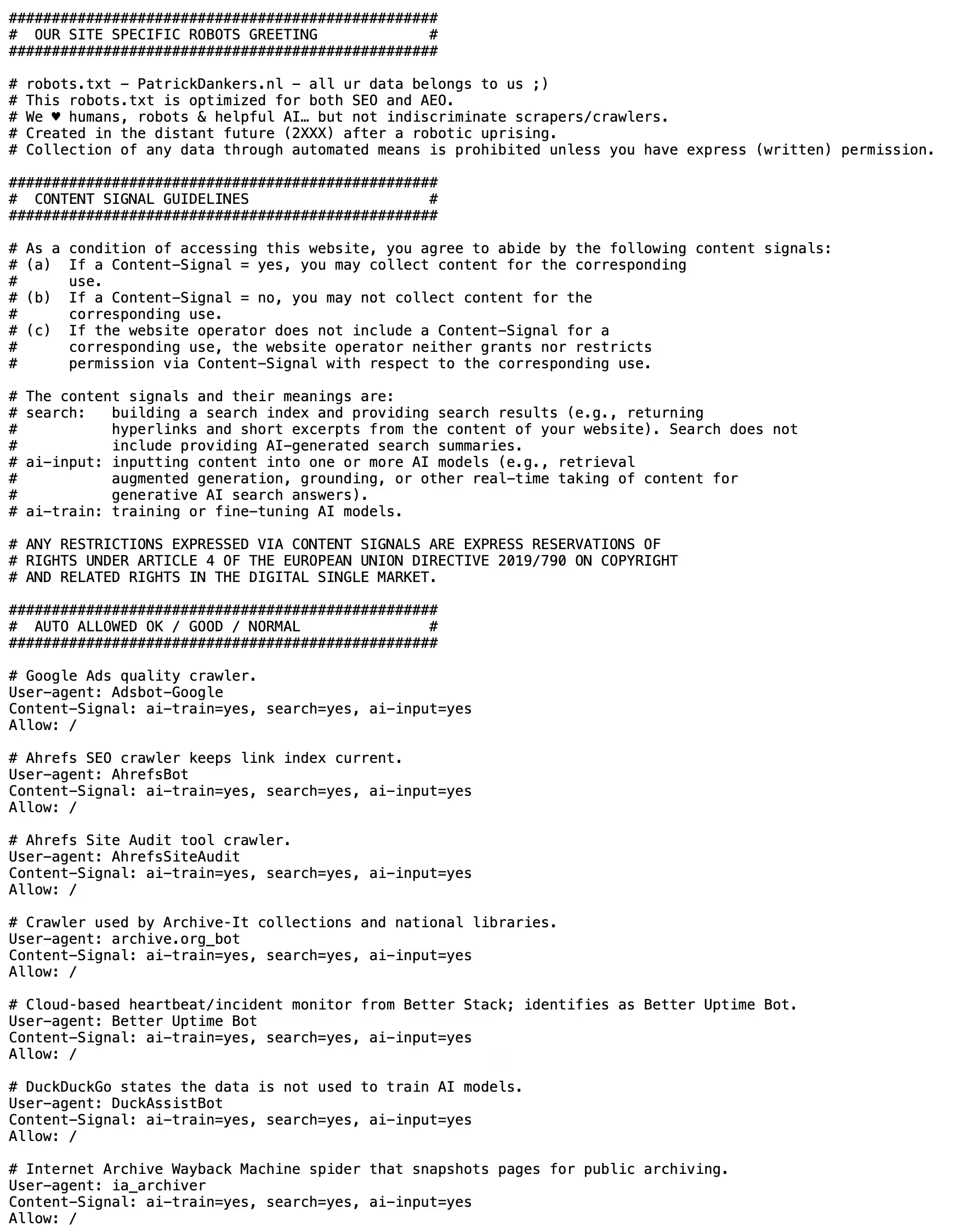
A virtual robots.txt instead of a physical file
AEO – Robots.txt Server does not write a physical robots.txt file to your server. Instead, the plugin integrates with WordPress’ virtual robots.txt functionality.
When someone requests /robots.txt and no physical robots.txt file takes precedence, WordPress dynamically generates the response. AEO – Robots.txt Server uses this process to add the rules you have selected and build the final output.
This allows you to manage your crawler settings directly from WordPress without having to work through FTP, a hosting control panel or a file editor.
The key features
Lite and Pro share the same core: a clear way to manage important AI and LLM crawlers and automatically turn those choices into a virtual robots.txt.
Pro goes considerably further and gives you control over additional robots.txt rules, WordPress-specific paths, crawl behavior, PDFs, sitemaps and the portability of your settings.
Manage AI and LLM crawlers from a clear list
The central feature of AEO – Robots.txt Server is the crawler list. Instead of having to look up and enter user-agent names yourself in a text file, the plugin displays supported AI, LLM and other relevant crawlers in a clear table.
The list is displayed alphabetically so you can find a specific crawler much more quickly.
For every crawler, you can choose from three options:
- Allow – you explicitly add a rule that allows the crawler.
- Disallow – you explicitly add a blocking rule for the crawler.
- N/A – the plugin does not add an individual choice for that crawler.
This core functionality is available in both Lite and Pro. You therefore do not need to pay for Pro just to allow or block individual supported AI and LLM crawlers.
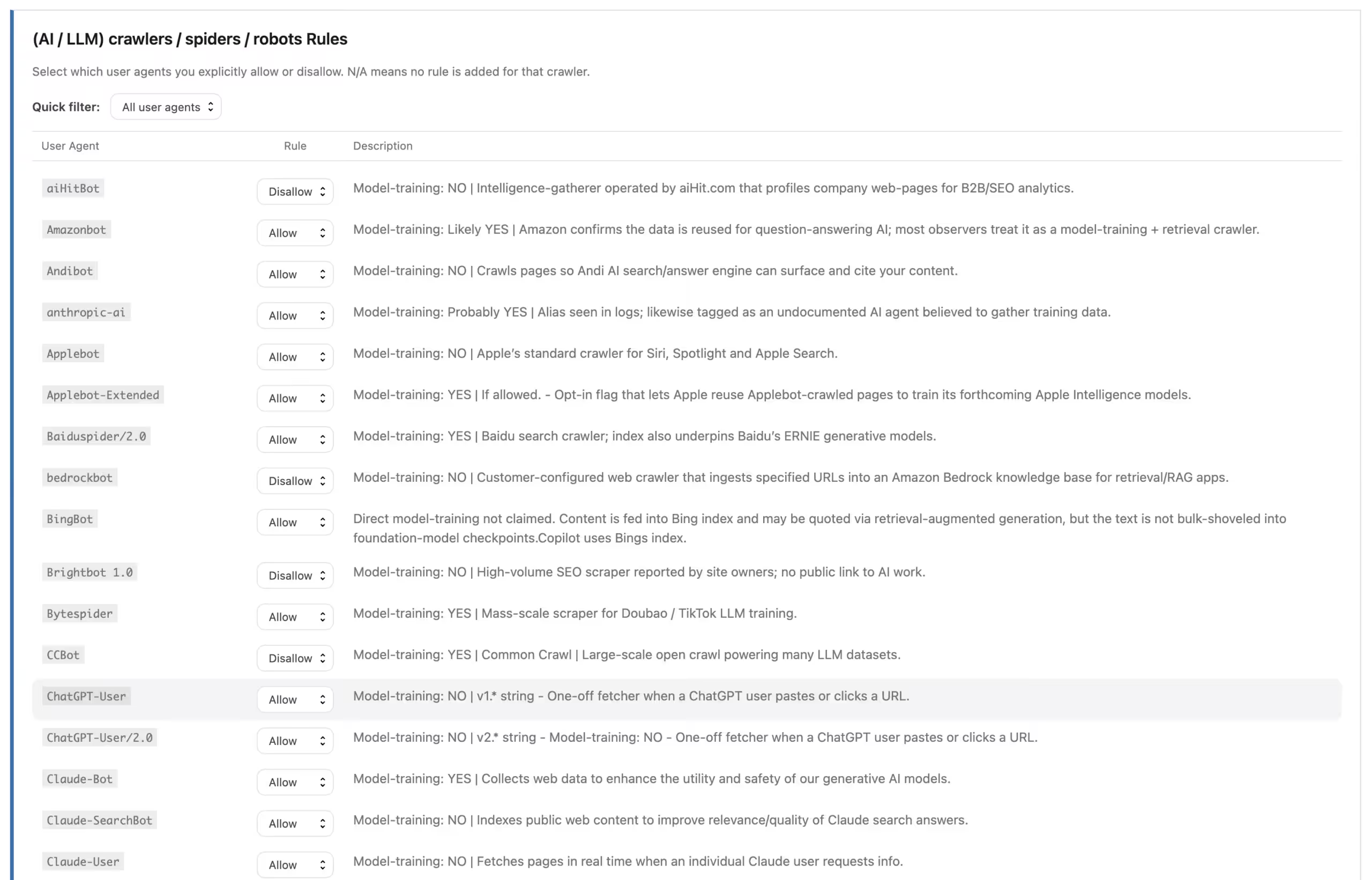
Pro lets you quickly filter by Allowed and Disallowed crawlers
As the crawler list grows, it can become difficult to see at a glance which choices you previously made.
Pro therefore adds a quick status filter. This allows you to filter the table to show, for example, only Allowed or only Disallowed crawlers.
This may sound like a small feature, but it becomes especially valuable when you manage dozens of crawler choices. You no longer need to check every row individually to see which bots you have explicitly allowed or blocked.
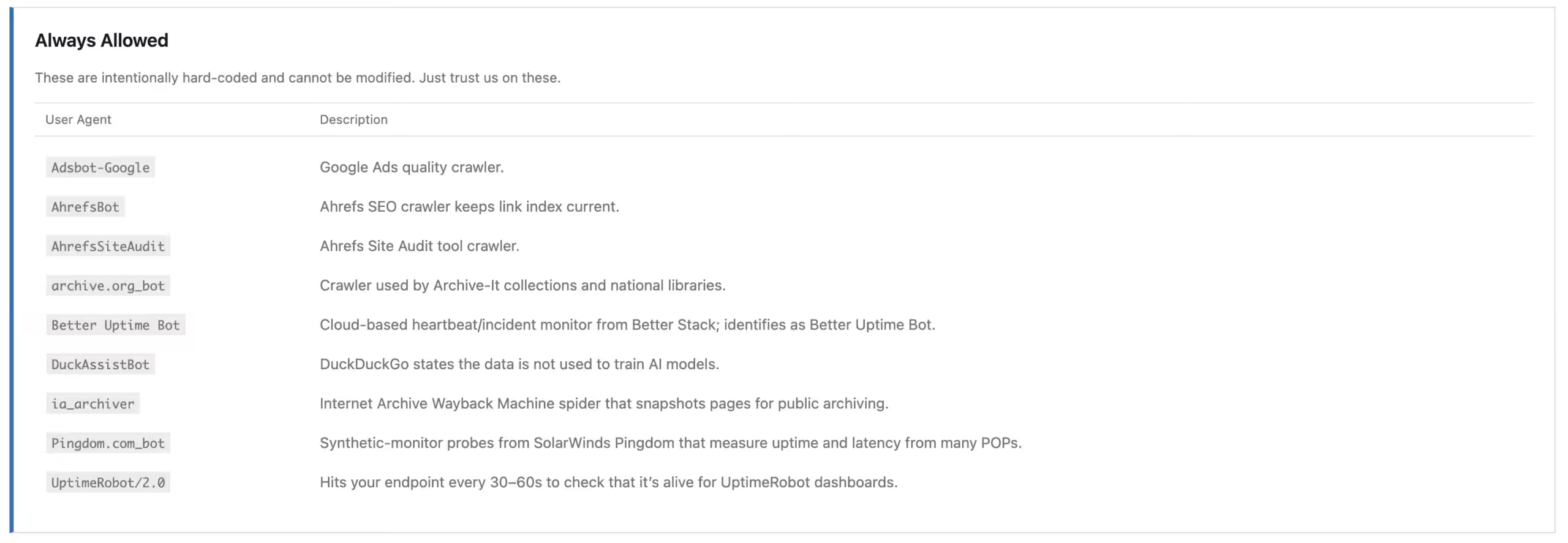
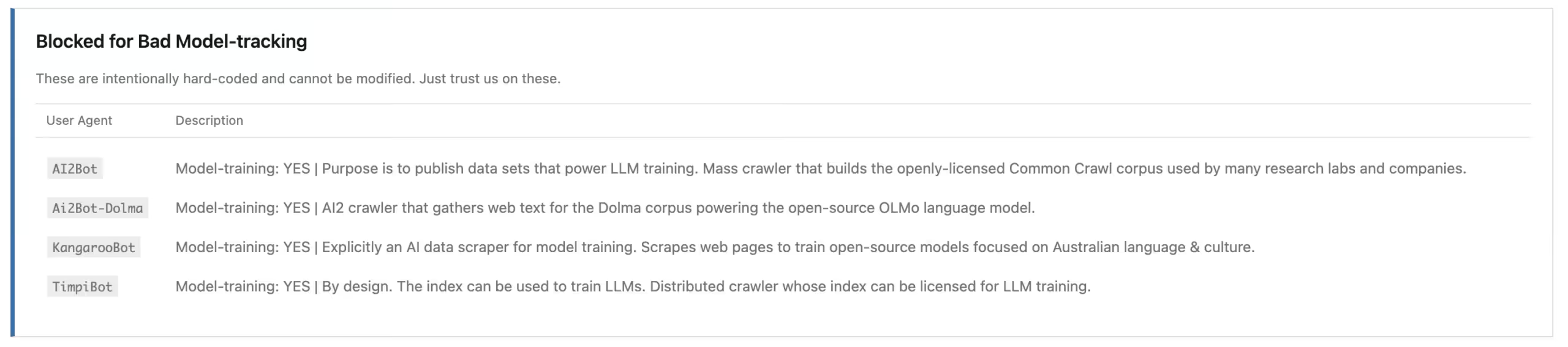
Built-in baseline rules for always allowed and always blocked crawlers
In addition to your manual crawler choices, AEO – Robots.txt Server also includes built-in baseline rules.
These allow certain known crawlers to be automatically processed in an Always Allowed or fixed blocking group. These baseline rules become part of the generated robots.txt without you having to build them yourself every time.
The purpose is to provide a usable foundation on top of which your own specific choices are applied.
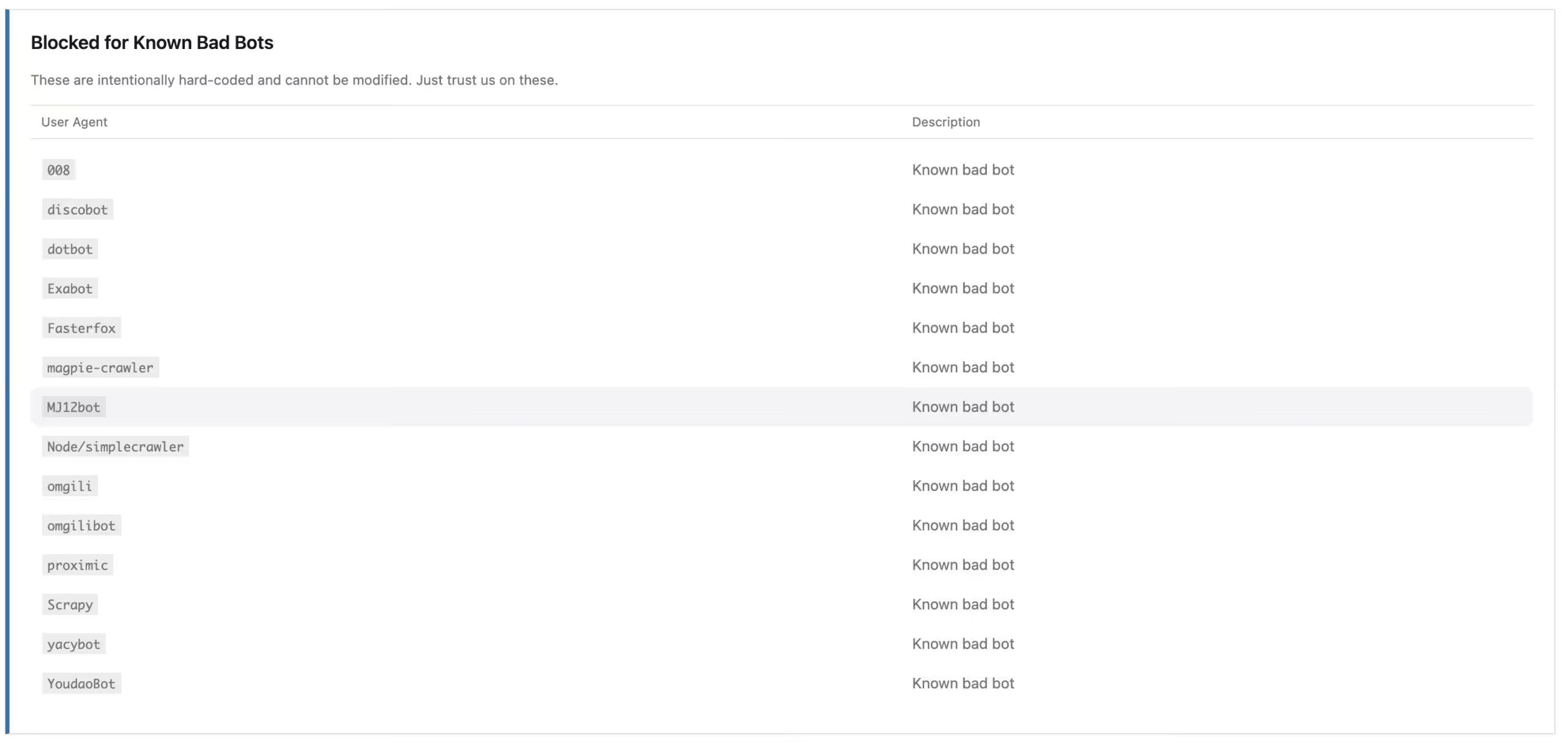
Content Signal Guidelines are included in the generated robots.txt
The plugin also adds a Content Signal Guidelines section to the generated robots.txt.
This text describes signals around different possible forms of content use, including traditional search indexing, using content as input for AI systems and training or fine-tuning AI models.
This information is displayed as comments in robots.txt and provides additional context around how the website owner views different forms of automated content use.
Like regular robots.txt rules, this is not a technical security mechanism that can force an unwilling party to comply. It is a public signal and should be understood as such.
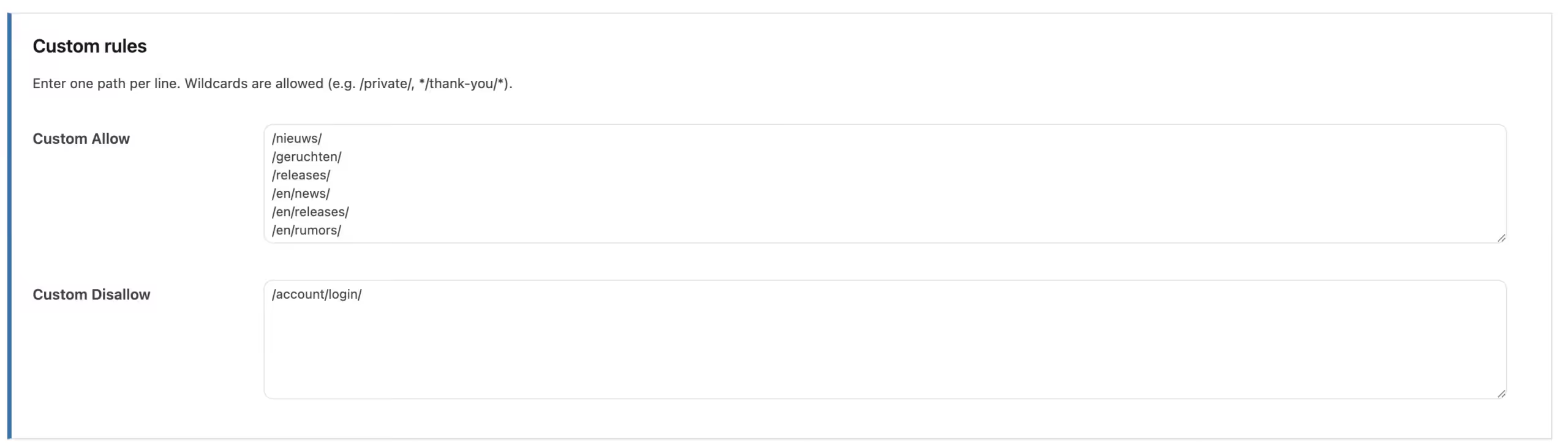
Pro lets you add your own Allow and Disallow rules
The built-in crawler list is useful for known user agents, but sometimes you may want to create additional rules that are not tied to one specific AI crawler.
Pro therefore includes fields for Custom Allow and Custom Disallow.
You can enter one path per line and can also use wildcards. For example, you can specify that a certain section of the website should not be crawled or that a specific path should remain accessible.
Examples could include:
/private/
or:
*/thank-you/*
This gives you much more freedom to make the generated robots.txt reflect the actual structure of your website.
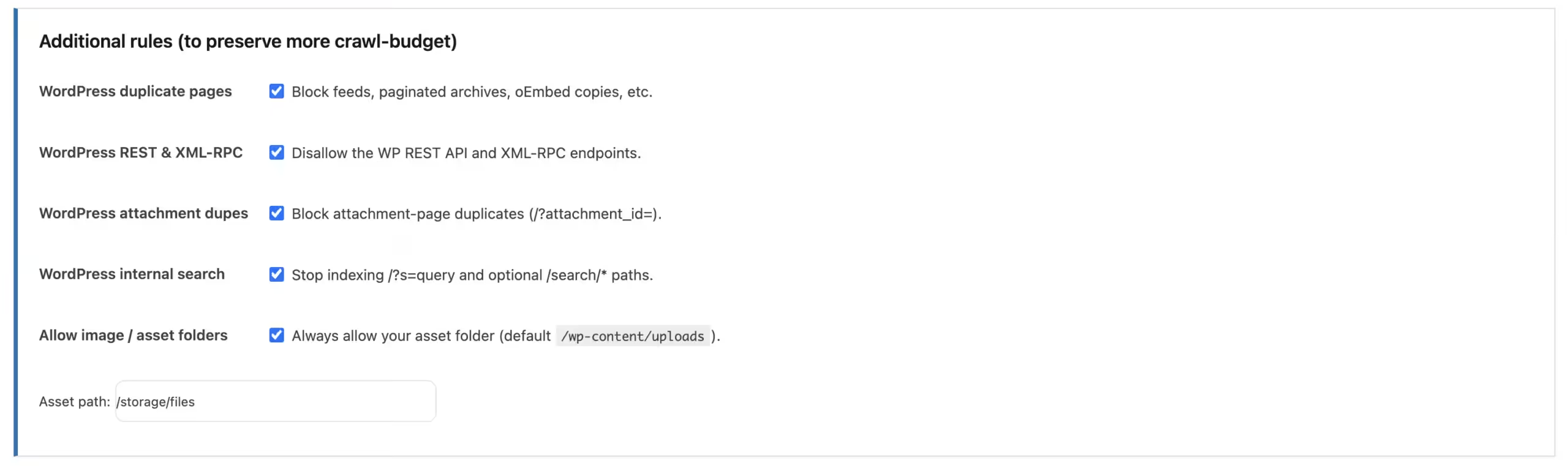
Pro includes additional rules to protect crawl budget
Crawlers can encounter all kinds of URLs on WordPress websites that offer little added value when repeatedly visited. Pro therefore includes additional options designed to reduce unnecessary crawling.
The available settings include, among other things, rules for duplicate WordPress URLs and other WordPress-specific paths.
For a non-technical website administrator, the main benefit is that you can manage these common WordPress rules without having to know all the required robots.txt syntax yourself.
Pro can block WordPress REST API and XML-RPC paths for crawlers
WordPress includes technical endpoints such as the REST API and XML-RPC. These are intended for software-based communication with WordPress and can be important for certain integrations.
For ordinary web crawlers, however, these paths are not always useful.
Pro therefore includes a setting that allows you to ask crawlers through robots.txt not to crawl the WordPress REST API and XML-RPC endpoints.
This does not disable the REST API or XML-RPC itself. The plugin only provides a crawler instruction for these paths through robots.txt.
Pro can keep internal search results out of crawler traffic
WordPress can generate search result pages, for example through URLs containing ?s=searchterm. Some websites also use a separate path such as /search/.
These pages can produce large numbers of variations that are not always useful to have crawled.
Pro therefore includes a setting for blocking WordPress search URLs and also allows you to customize the search path being used.
This can help focus crawler activity more on the content you actually consider important.
Pro gives you control over asset and upload paths
Images, stylesheets and other files are often located in specific WordPress directories. Pro includes settings that allow you to specify an asset path and ensure that this path remains accessible through the relevant rules.
The default path is based on the normal WordPress uploads location, but it can be customized if your website uses a different structure.
This is particularly useful when you also use stricter Disallow rules and want to prevent necessary public files from being unintentionally affected.

Pro gives separate control over Googlebot-Image
Google uses a dedicated crawler for images: Googlebot-Image.
Pro can generate a separate User-agent: Googlebot-Image block and let you determine which path this crawler is allowed to visit.
For example, you can explicitly keep your public uploads directory accessible to the image crawler even when you treat other parts of the website more restrictively.
Pro lets you add your own robots.txt header
In addition to technical rules, robots.txt can also contain comment lines. These are not treated as Allow or Disallow instructions, but they can provide additional information to someone viewing the file.
Pro therefore includes a configurable Header that can be placed at the top of robots.txt.
You can use this, for example, to include a contact address, policy information or a URL to a more detailed crawler policy.
This allows you to provide additional context alongside the technical crawler rules about how your website handles automated access.

Pro supports the Crawl-delay directive
Some crawlers support the Crawl-delay directive. This allows you to indicate how much time a crawler should leave between requests.
Pro lets you enable this directive and configure the number of seconds yourself.
It is important to know that not every crawler supports Crawl-delay. The plugin notes, for example, that Bingbot, AhrefsBot and several other crawlers can work with it, while Googlebot ignores this directive.
This feature is therefore not a universal rate limiter, but it can be useful for crawlers that actually respect the directive.

Pro can ask crawlers not to index PDF files
WordPress websites regularly contain PDF documents. Sometimes you want these to be directly discoverable, while in other cases a PDF may contain the same information as a normal web page or information you do not want to appear through search results.
Pro therefore includes a setting for PDF Indexing.
When you enable it, the plugin adds rules that ask search engines not to index PDF files.
Again, robots.txt is not access protection. A PDF that is publicly accessible remains technically public. Use actual access controls if a document is confidential.

Pro manages sitemaps from the same settings
A sitemap helps search engines and other suitable crawlers discover important URLs on your website.
Pro can automatically take sitemap indexes from supported WordPress solutions such as Yoast SEO and Rank Math into account.
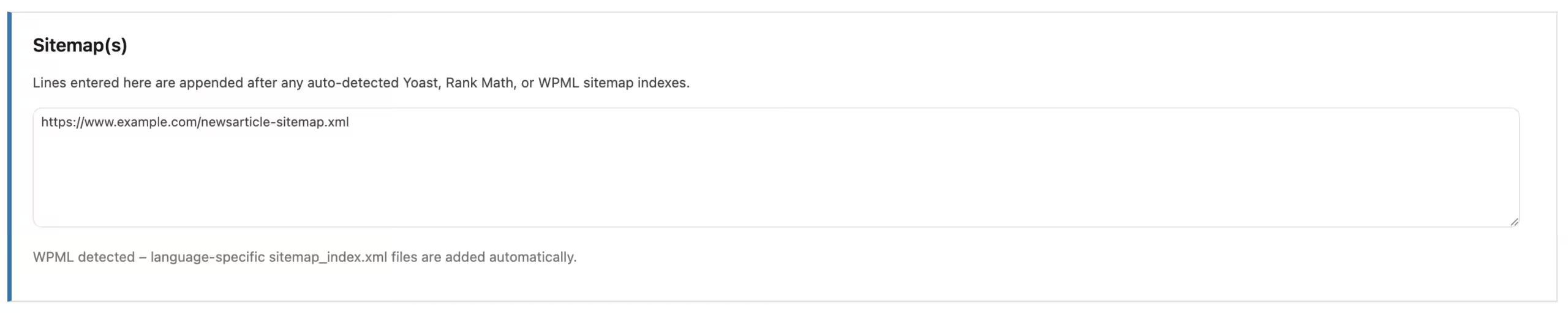
If you use WPML, the plugin can also detect and add language-related sitemap indexes.
You can also enter additional sitemap rules yourself. These are added to robots.txt after the automatically discovered sitemap information.
This allows you to manage both crawler rules and important sitemap references from the same WordPress settings.
Pro supports WPML-aware sitemap processing
Multilingual websites can have a more complex sitemap structure than single-language websites.
When WPML is detected, Pro can take active language structures into account and automatically add language-related sitemap_index.xml files.
This prevents you from having to maintain these sitemap rules completely manually for every language.
Pro lets you export and import your settings as JSON
When you have configured many crawler rules, you may want to save that configuration or reuse it on another installation.
Pro therefore includes Import / Export.
You can download your settings as a JSON export and later import a compatible JSON backup again.
This can be useful as a backup before making major changes or when managing multiple websites with similar crawler rules.

A clearly marked Danger Zone for resetting settings
Both Lite and Pro include a clearly distinguished Danger Zone.
Here you can reset the stored plugin settings to their default values.
Because this replaces your existing choices, the plugin clearly warns that this action cannot be undone from within WordPress. Pro users can first create a JSON export as a backup.
By deliberately separating this feature visually from normal settings, the chance of accidentally performing a reset is reduced.
Pro features are visible in Lite without being accidentally usable
Lite does not simply hide everything that is available in Pro. The Pro sections are displayed as locked and disabled settings.
This allows you to see which additional features Pro offers from within Lite without accidentally enabling a Pro setting.
This makes the difference between both versions more transparent and helps you better determine whether an upgrade would actually be useful for your website.
How does AEO – Robots.txt Server work?
You do not need to write robots.txt code yourself to use the core functionality of the plugin. The settings are managed from WordPress and the plugin turns your choices into the actual robots.txt output.
- Install the plugin. Go to Plugins > Add New Plugin > Upload Plugin, upload the Lite or Pro ZIP and activate the plugin.
- Open the settings. Go to Settings > AEO – Robots.txt Server. You can also use the direct Settings link on the WordPress Plugins screen.
- View the AI and LLM crawler list. The supported crawlers are displayed alphabetically so you can easily find them.
- Choose what you want to do for each crawler. Select Allow, Disallow or N/A.
- Configure additional rules in Pro if needed. Add your own Allow or Disallow paths and decide which additional crawl-budget rules you want to use.
- Configure content and media paths in Pro if needed. Set, for example, your asset path and the path for Googlebot-Image.
- Add your own header in Pro if desired. This allows you to place additional contact or policy information at the top of robots.txt.
- Configure Crawl-delay and PDF indexing in Pro if needed. Only use these options when they suit the way your website should be crawled.
- Check your sitemaps in Pro. The plugin can automatically detect supported sitemaps and you can add additional sitemap URLs.
- Save the settings. The plugin uses your choices to dynamically build the virtual robots.txt.
- Check the result. Open
https://yourdomain.com/robots.txtto see which rules are actually being served.
When /robots.txt is requested, WordPress generates its virtual robots.txt. AEO – Robots.txt Server hooks into that process, reads your saved settings and builds the final rules.
If your WordPress installation is configured as non-public, WordPress can block crawlers entirely. For a public website, the plugin builds the various sections from the available baseline rules, your individual crawler choices and – in Pro – the advanced settings you have enabled.
You do not need to re-upload a physical file after changing a choice. Change the setting in WordPress, save it and the next generated robots.txt uses the new configuration.
A simple practical example
Suppose you do not want a specific AI crawler to crawl your website.
Instead of writing the exact robots.txt syntax yourself, you find the crawler in the alphabetical list and select Disallow.
If you later decide that you do want to allow that crawler, change the option to Allow.
If you use Pro and also want, for example, to prevent internal search results from being crawled, you can enable the relevant additional rule. If you then want to add your own sitemap, you can enter that URL in the same settings panel.
The plugin then combines these choices in the robots.txt that WordPress serves to crawlers.
Lite or Pro: which version is right for you?
AEO – Robots.txt Server Lite is deliberately usable as a free version. The most important feature – managing individual AI and LLM crawlers – remains available. You can therefore genuinely make crawler choices without having to purchase Pro first.
AEO – Robots.txt Server Pro is intended for website owners who want to manage not only individual bots, but also configure their broader crawler policy from WordPress.
| Feature | Lite | Pro |
|---|---|---|
Dynamic virtual robots.txt |
Yes | Yes |
| No physical robots.txt file is written | Yes | Yes |
| Alphabetically sorted AI and LLM crawler list | Yes | Yes |
| Choose Allow, Disallow or N/A per crawler | Yes | Yes |
| Built-in Always Allowed baseline rules | Yes | Yes |
| Built-in fixed blocking rules | Yes | Yes |
| Content Signal Guidelines in robots.txt | Yes | Yes |
| Direct Settings link on the Plugins screen | Yes | Yes |
| Clearly marked Danger Zone | Yes | Yes |
| Reset settings to default values | Yes | Yes |
| Filter crawler list by Allowed or Disallowed | No | Yes |
| Custom Allow rules | No | Yes |
| Custom Disallow rules | No | Yes |
| Wildcards in custom rules | No | Yes |
| Additional crawl-budget rules | No | Yes |
| Rules for WordPress REST API and XML-RPC | No | Yes |
| Rules for internal WordPress search results | No | Yes |
| Customizable search path | No | Yes |
| Manage asset/upload path | No | Yes |
| Manage Googlebot-Image separately | No | Yes |
| Configure path for Googlebot-Image | No | Yes |
| Custom robots.txt header | No | Yes |
| Enable Crawl-delay | No | Yes |
| Configure Crawl-delay in seconds | No | Yes |
| Block PDF indexing through robots.txt | No | Yes |
| Sitemap management | No | Yes |
| Automatically detect supported Yoast SEO sitemap | No | Yes |
| Automatically detect supported Rank Math sitemap | No | Yes |
| WPML-aware sitemap processing | No | Yes |
| Add custom sitemap URLs | No | Yes |
| Export settings to JSON | No | Yes |
| Import settings from JSON | No | Yes |
| Pro features visible as locked preview | Yes | Not applicable |
| Automatic Lite/Pro conflict handling | Yes | Yes |
| Pro does not require Lite | Not applicable | Yes |
| Standalone uninstall handling | Yes | Yes |
Why choose Pro?
Lite gives you exactly what you need to manage the most important AI and LLM crawler choices from WordPress. For each supported crawler, you can decide whether you want to allow it, block it or leave it unchanged, and the plugin automatically processes those choices in your virtual robots.txt.
Pro, however, transforms AEO – Robots.txt Server from a crawler selection list into a much more advanced management system for your robots.txt.
The difference becomes especially clear as your website grows. You may then want to do more than simply decide which AI crawler gets access. You may also want to prevent bots from spending time on internal search results, technical WordPress endpoints and other URLs that provide little value within your crawler policy.
With Pro, you can manage these additional rules from the same interface.
You can also add your own Allow and Disallow paths. This means you are not limited to the built-in choices and can make robots.txt fit your own website much more closely.
The additional control over Googlebot-Image, crawl delay, PDF indexing and assets makes Pro more useful for websites with a lot of media or a more complex technical structure.
Sitemap management is also included. Supported Yoast SEO and Rank Math sitemaps can be included, WPML can be recognized for multilingual sitemap structures and you can add your own additional sitemaps.
For administrators who manage multiple websites, JSON Import / Export is another important advantage. Instead of rebuilding an advanced configuration from scratch, you can save settings and import a compatible export again.
Lite is ideal when you mainly want control over individual AI and LLM crawlers. Pro is the best choice when you want to manage robots.txt as a complete part of your crawler policy.
Pricing
AEO – Robots.txt Server Lite
Free for everyone.
AEO – Robots.txt Server Lite will be available free of charge and includes the core functionality of the plugin.
You get a dynamic virtual robots.txt, an alphabetically sorted list of supported AI and LLM crawlers and the ability to individually set them to Allow, Disallow or N/A.
You also benefit from the built-in baseline rules, the clear settings interface, Content Signal Guidelines, the direct settings link from the Plugins screen and safe handling when Lite and Pro are present on the same WordPress installation.
Lite is therefore a genuinely usable free edition and not simply a limited demonstration of Pro.
DOWNLOAD LINK; aeo-rtxts-pd-lite
AEO – Robots.txt Server Pro
You get the quick crawler filter, custom Allow and Disallow rules, additional crawl-budget rules, content and media path settings, custom headers, Crawl-delay, PDF indexing rules, advanced sitemap management and JSON Import / Export.
The AEO – Robots.txt Server Pro version goes considerably beyond simply editing robots.txt. Among other things, I’m giving users more sophisticated crawler controls, custom rules and wildcards, crawl-budget controls, WordPress path management, HTTP/header-related controls, sitemap management and import/export functionality.
Pay €49 per site once instead of installing several small plugins or manually maintaining increasingly complicated robots.txt rules.
A special launch price of €29 lifetime per site is available for a limited time.
Lifetime license and updates included. Standard support included for 6 months.
Additional support outside of that windows will have to be discussed on a per case basis.
Purchasing options and lite and pro versions will go live in the upcoming weeks.
Frequently Asked Questions
- What exactly does AEO – Robots.txt Server do?
- What is robots.txt?
- Does the plugin create or overwrite a physical robots.txt file?
- What happens if my website already has a physical robots.txt file?
- Do crawlers have to follow robots.txt?
- Can I use robots.txt to protect confidential information?
- Can I allow or block individual AI and LLM crawlers in Lite?
- What does N/A mean for a crawler?
- What does the Allowed/Disallowed filter do in Pro?
- Can I add my own Allow and Disallow rules?
- What is meant by crawl budget?
- Does Pro disable the WordPress REST API or XML-RPC?
- Why would I block internal WordPress search results?
- Can I manage Googlebot-Image separately?
- What does Crawl-delay do?
- Does Crawl-delay work for Googlebot?
- Can Pro prevent my PDFs from being accessible?
- How does sitemap management work in Pro?
- Does the plugin work with Yoast SEO and Rank Math?
- Does AEO – Robots.txt Server work with WPML?
- What are the Content Signal Guidelines?
- Can I save my Pro settings as a backup?
- What does the Danger Zone do?
- Why can I see Pro settings in Lite?
- Do I need Lite before I can install Pro?
- Can Lite and Pro be active at the same time?
- How do I check whether my rules are active?
- Which WordPress and PHP versions do I need?
- What exactly does AEO – Robots.txt Server do?
- AEO – Robots.txt Server manages WordPress’ virtual
robots.txt. From the WordPress administration area, you can specify which supported AI and LLM crawlers you explicitly want to allow or block. The plugin then turns your choices into robots.txt rules. Pro adds more advanced functionality for custom rules, crawl budget, media paths, crawl delay, PDFs, sitemaps and import/export.
- AEO – Robots.txt Server manages WordPress’ virtual
- What is robots.txt?
- Robots.txt is a public text file on your domain that allows you to provide instructions to web crawlers. The file uses user agents to indicate which crawler a rule applies to and can, for example, contain Allow and Disallow rules for specific paths. It is a communication mechanism for crawlers, not a technical access-control system.
- Does the plugin create or overwrite a physical robots.txt file?
- No. AEO – Robots.txt Server does not write a physical robots.txt file to your hosting account. The plugin works with the virtual robots.txt output that WordPress can generate dynamically.
- What happens if my website already has a physical robots.txt file?
- The plugin is designed to filter WordPress’ virtual robots.txt output. If a physical
robots.txtfile on the server takes precedence, that physical file may be served instead of the virtual WordPress output. Always check/robots.txtafter configuring the plugin to confirm which version is actually publicly available.
- The plugin is designed to filter WordPress’ virtual robots.txt output. If a physical
- Do crawlers have to follow robots.txt?
- No. Robots.txt communicates instructions and preferences, but it cannot technically force a crawler to respect them. Reputable search engine bots and other compliant crawlers may follow the rules, while a malicious scraper can ignore them. If you need to technically block a bot, you need additional measures at the server, firewall or CDN level.
- Can I use robots.txt to protect confidential information?
- No. Robots.txt is public and the paths listed in it can even reveal where certain content is located. Confidential information must be protected with actual access controls, such as authentication or server-level security. Use robots.txt only to guide crawler behavior.
- Can I allow or block individual AI and LLM crawlers in Lite?
- Yes. This is part of Lite’s core functionality. The supported crawler list is displayed alphabetically and you can choose between Allow, Disallow and N/A for each crawler. You therefore do not need a Pro license to make individual crawler choices.
- What does N/A mean for a crawler?
- N/A means that you do not add an individual Allow or Disallow choice for that crawler. The plugin leaves that specific crawler choice untouched. Other baseline or general rules can, of course, still apply.
- What does the Allowed/Disallowed filter do in Pro?
- The Pro filter does not change your robots.txt rules. It helps you review the settings more quickly. For example, you can show only the crawlers you have set to Allowed or only those you have set to Disallowed. This becomes especially useful as the crawler list grows.
- Can I add my own Allow and Disallow rules?
- Yes, in Pro. You can enter custom Allow and Disallow paths, one per line. Wildcards are supported, allowing you to better tailor rules to specific URL structures on your own website.
- What is meant by crawl budget?
- A crawler can spend only a certain amount of time and requests on your website. If many of those requests go to search results, technical endpoints or duplicate URLs, time is being spent on pages you may consider less important. The additional Pro rules are designed to guide compliant crawlers more toward the content that matters more to your website.
- Does Pro disable the WordPress REST API or XML-RPC?
- No. The relevant Pro option adds robots.txt instructions asking crawlers not to visit these endpoints. The plugin does not technically disable the REST API or XML-RPC itself. Other WordPress functions and integrations can therefore continue to use these endpoints.
- Why would I block internal WordPress search results?
- Internal search results can generate a very large number of different URLs and often contain combinations of content that is already available elsewhere on the website. If you do not want compliant crawlers spending a lot of time on these URLs, you can use Pro to restrict search URLs through robots.txt.
- Can I manage Googlebot-Image separately?
- Yes, in Pro. The plugin can create a separate block for
Googlebot-Imageand let you determine which path is allowed for this crawler. This can be useful when you deliberately want to keep images accessible while other crawler rules are more restrictive.
- Yes, in Pro. The plugin can create a separate block for
- What does Crawl-delay do?
- Crawl-delay is a robots.txt directive that allows you to ask supporting crawlers to leave a certain number of seconds between requests. Pro lets you activate this directive and configure the desired delay in seconds. Not every crawler supports this instruction.
- Does Crawl-delay work for Googlebot?
- No. The plugin explicitly notes that Googlebot ignores the Crawl-delay directive. Other crawlers, including Bingbot, AhrefsBot and several other bots, may respect it. You should therefore not view the feature as a universal speed limit.
- Can Pro prevent my PDFs from being accessible?
- No. Pro can use robots.txt to ask search engines not to index PDF files, but it does not make a public PDF private. If someone knows the exact URL, the file can still be accessible. Confidential PDFs must be protected with actual access controls.
- How does sitemap management work in Pro?
- Pro can detect supported sitemap indexes and add them to robots.txt as Sitemap rules. You can also enter additional sitemap URLs yourself. These manually entered rules are added after the automatically detected sitemap information.
- Does the plugin work with Yoast SEO and Rank Math?
- Yes. Pro can automatically detect supported sitemap indexes from Yoast SEO and Rank Math and include them in the robots.txt output. This means you do not always have to enter this sitemap information manually.
- Does AEO – Robots.txt Server work with WPML?
- Yes. The plugin is WPML-aware. In Pro, WPML can also be used during sitemap processing. When WPML is detected, language-related
sitemap_index.xmlfiles can be added automatically.
- Yes. The plugin is WPML-aware. In Pro, WPML can also be used during sitemap processing. When WPML is detected, language-related
- What are the Content Signal Guidelines?
- The generated robots.txt contains a comment section with guidelines around different forms of content use, including search, AI input and AI training. This information is intended as an additional public signal about preferred forms of use. Like robots.txt itself, it is not a technical security mechanism that can force an unwilling party to comply.
- Can I save my Pro settings as a backup?
- Yes. Pro can export the saved settings to JSON. You can later import a compatible JSON export again. This is useful as a backup before making major changes or when you want to use a similar configuration on another installation.
- What does the Danger Zone do?
- The Danger Zone contains the function that resets all saved plugin settings to their default values. Because this action overwrites existing choices, it is clearly marked and WordPress asks for confirmation. Pro users can first create a JSON export as a backup.
- Why can I see Pro settings in Lite?
- Lite deliberately shows the Pro sections as locked and disabled elements. This lets you see which additional features Pro offers without allowing those settings to be activated in Lite. The core Lite functionality remains fully usable.
- Do I need Lite before I can install Pro?
- No. Pro is a completely standalone plugin and includes the functionality of Lite. You can install Pro directly without first using Lite or keeping Lite installed.
- Can Lite and Pro be active at the same time?
- No. Pro takes priority. When Pro is activated while Lite is active, Lite is automatically deactivated. When Lite is activated while Pro is already active, Lite deactivates itself again and Pro remains active. WordPress displays an administrator notice.
- How do I check whether my rules are active?
- After saving your settings, open
https://yourdomain.com/robots.txtin your browser. There you can see the robots.txt that is actually being served publicly. Always check the final output after installation or changes, especially if your hosting environment may already use a physical robots.txt file.
- After saving your settings, open
- Which WordPress and PHP versions do I need?
- The current Lite and Pro versions require at least WordPress 6.5 and PHP 8.2. If your website is running an older version, it must first be updated before using the plugin.
Get more control over the crawlers that visit your website
The number of automated systems visiting websites continues to grow. This makes it increasingly important to consciously consider which crawlers you want to welcome, which you would rather block and which parts of your website you do or do not consider useful for automated access.
AEO – Robots.txt Server brings that management into WordPress and prevents you from having to manually rewrite a robots.txt file for every change.
With Lite, you get the most important crawler controls completely free. You can see the supported AI and LLM crawlers in an alphabetical list and choose Allow, Disallow or N/A for each crawler.
With Pro, you can turn this into a more advanced crawler policy. You get custom rules, crawl-budget options, control over WordPress paths and media, Googlebot-Image, custom headers, Crawl-delay, PDF indexing, sitemap management and JSON Import / Export.